

Connect a Shop
Log in to app.mockspark.com, open Connections in the top navigation, and choose Etsy.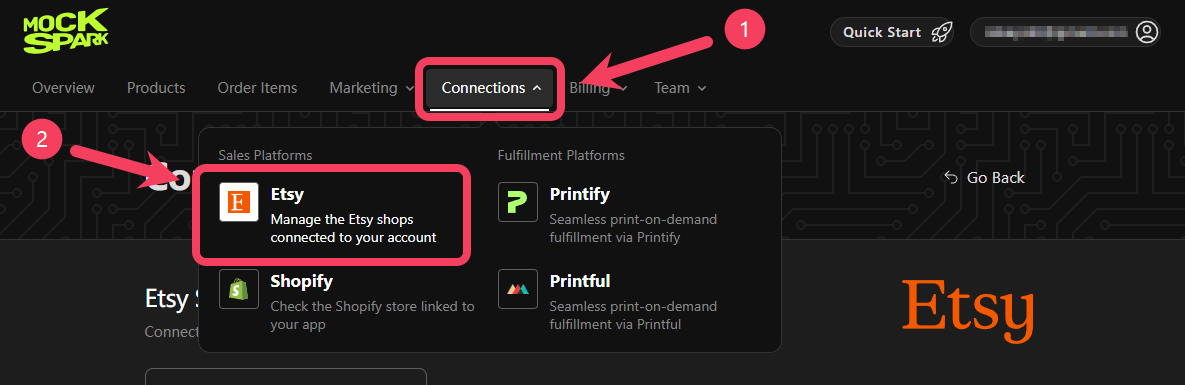
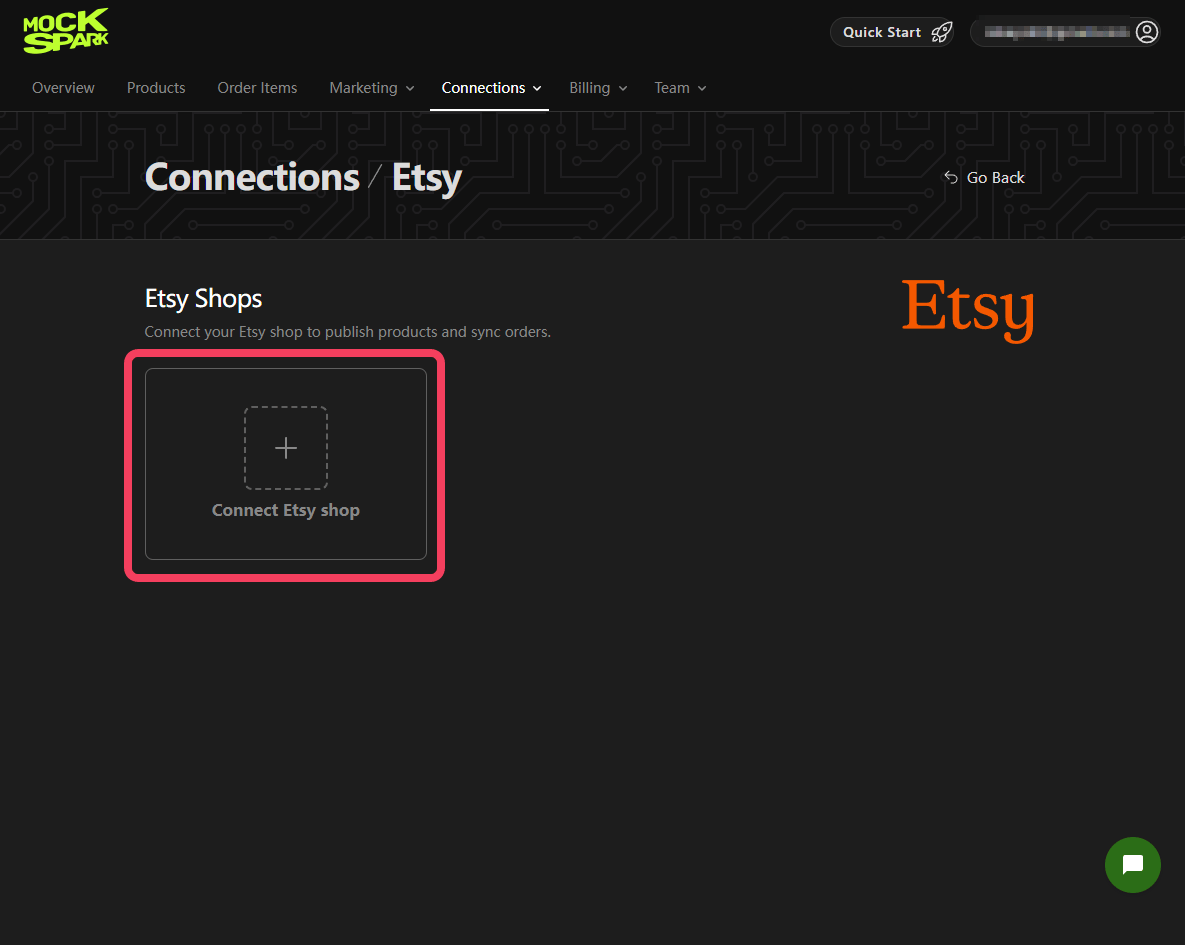
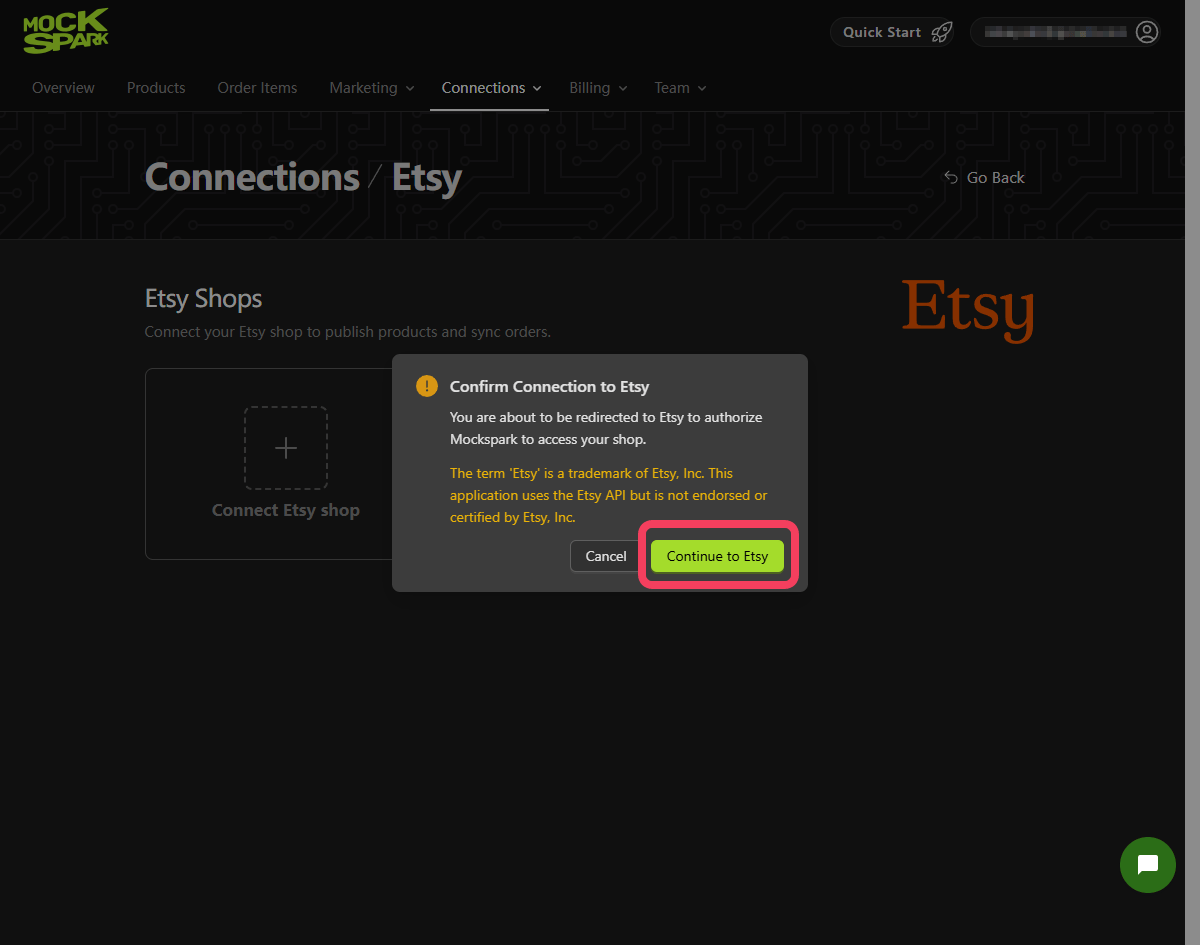
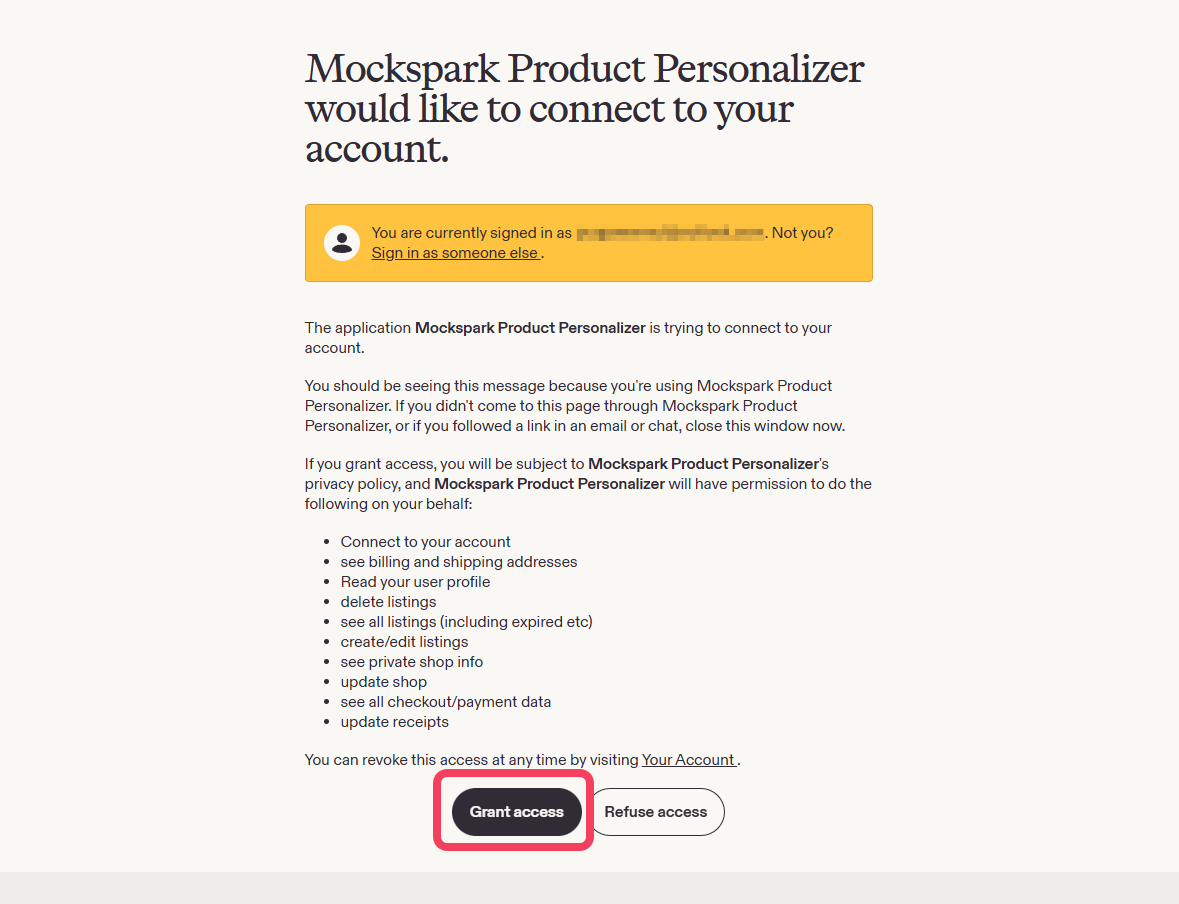
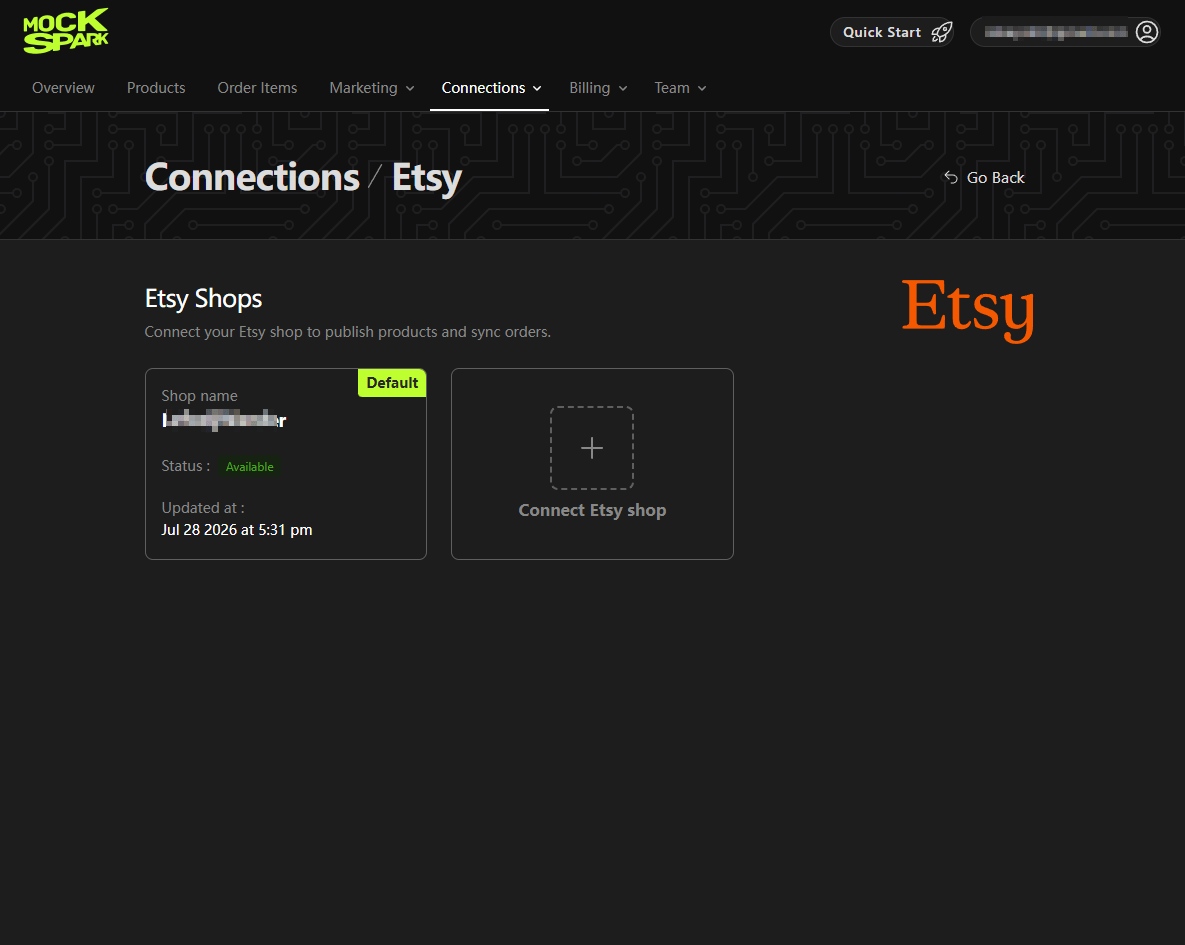
That is the whole setup. There is nothing to install in your Etsy shop and no theme or template to edit.
Connecting More Than One Shop
Run several Etsy shops from one Mockspark account by clicking Connect Etsy shop again and authorizing the next one. Each shop gets its own card. One shop is marked Default. When you create a new product, Mockspark assumes you mean the default shop, though you can switch shops on the publish form while the product is still a draft. To change which one is the default, hover over a card and click Set as default.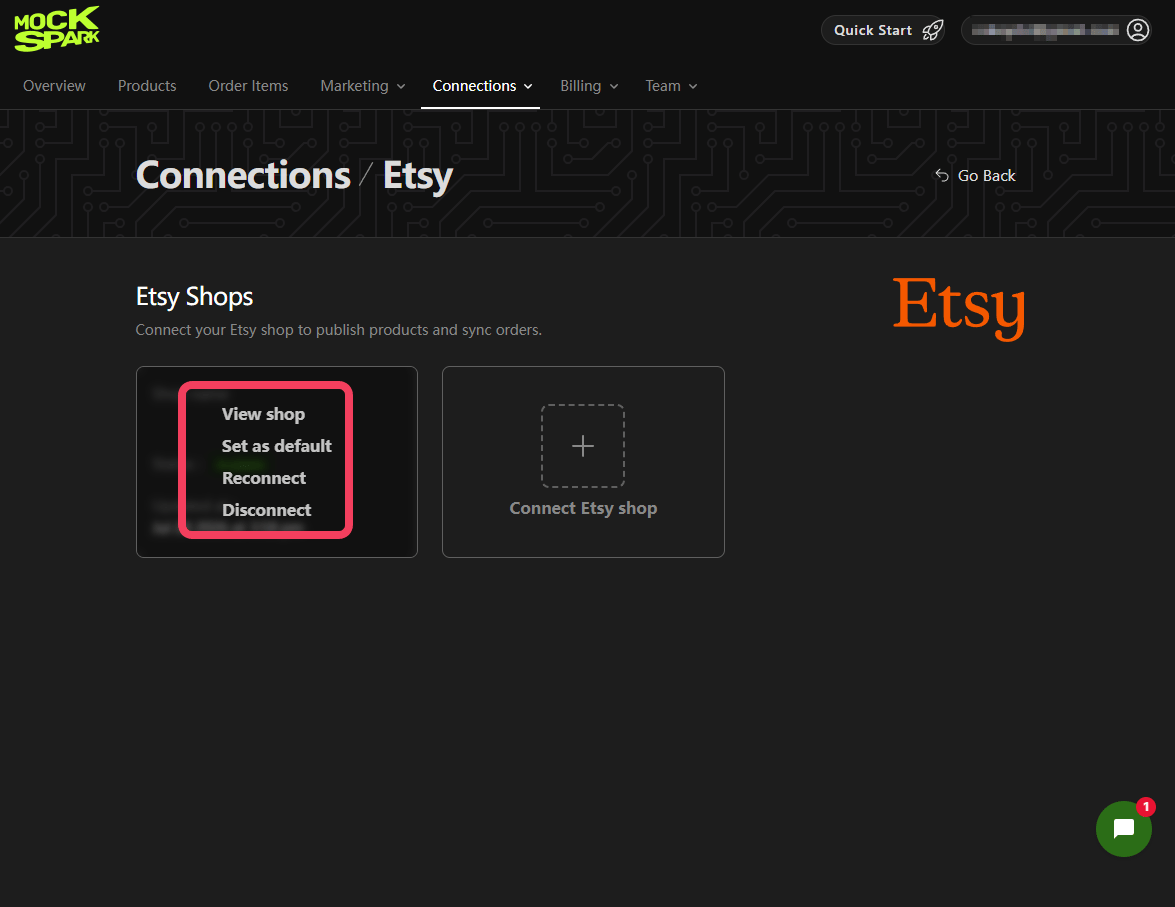
When a Shop Says “Reconnect Required”
Etsy access tokens expire and Mockspark refreshes them for you in the background. Sometimes that fails, usually because you removed the app from your Etsy account, or you changed your Etsy password. When that happens the card shows a red Reconnect required tag in place of the usual green Available status, and order syncing for that shop stops. To fix it, hover over the card and click Reconnect, then approve on Etsy again. Nothing is lost. Your products, listings, and past orders stay exactly where they were, and syncing picks up again.Disconnecting a Shop
Hover over the card and click Disconnect. This stops Mockspark from syncing orders for that shop. Listings already on Etsy stay live and keep selling, so if you want them gone, remove them in Etsy.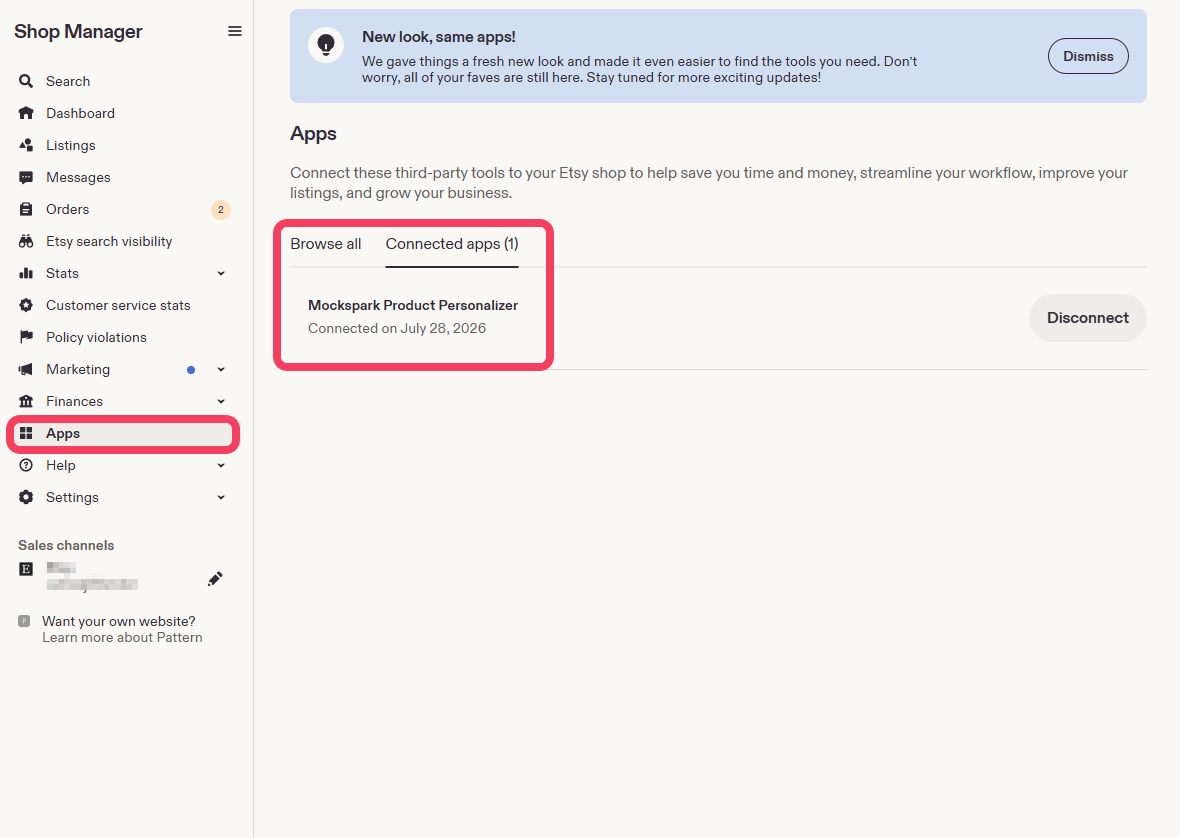
Next
Publish a Product to Etsy
Turn a designed product into a real Etsy listing.
The term ‘Etsy’ is a trademark of Etsy, Inc. This application uses the Etsy API but is not endorsed or certified by Etsy, Inc.