What is a Order-Item?
When a customer places a customized product order through your store and completes payment, the order is automatically synced with MockSpark. Once we receive the order details, we break it down by product into smaller sub-orders, which we refer to as Order-Items.
The relationship between orders and order items: From a customer perspective, an order is a list of selected products. For example, an order might contain two cups and a hat. Each product on that list is an order item. From a store perspective, an order is a list of order items. It is part of the store’s data.
- A single order may include both customizable products fulfilled by MockSpark and other unrelated products sold in your store. Since we don’t handle those unrelated items, automatically filtering them out helps simplify order management and reduce confusion for you.
- If a customer places one order for a T-shirt and later places another order for a hat, and both items are fulfilled through the same platform (such as Printify), we can now consolidate these Order Items based on the shipping address before sending them to the fulfillment provider. This significantly reduces shipping costs by avoiding duplicate shipment fees for items going to the same customer.
- If an order contains an item that is out of stock or has another issue, we can easily move forward with fulfilling the available items without requiring you to manually split the order. This helps ensure faster fulfillment and reduces the risk of losing the entire order.
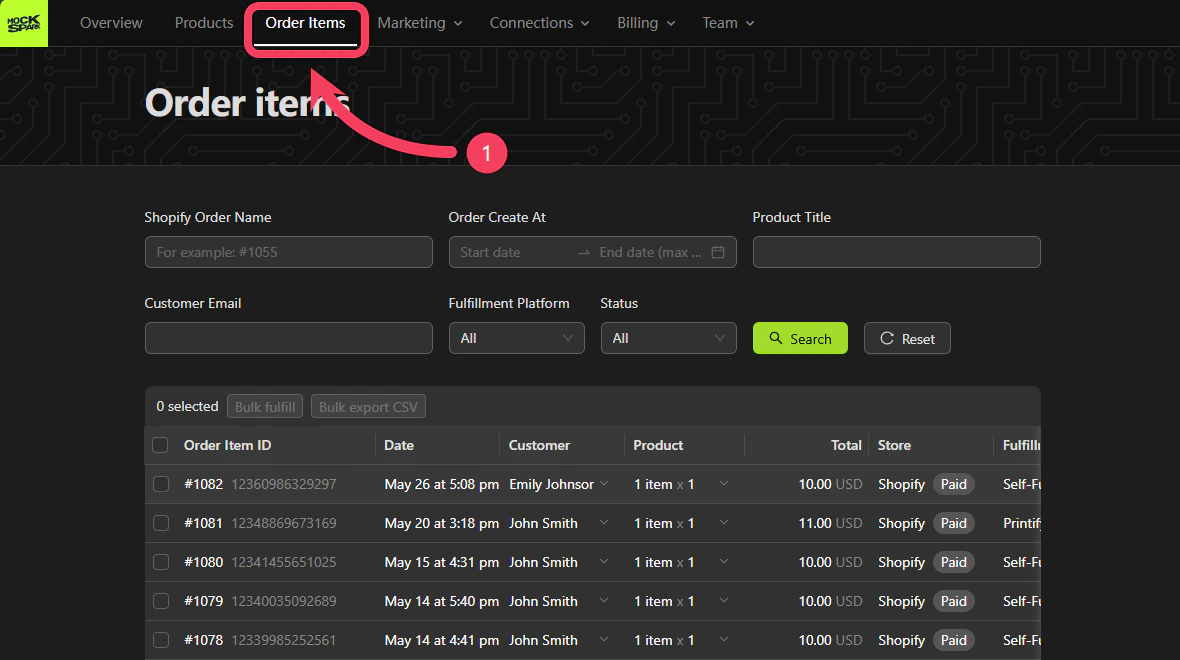
Go to the Order Items section from the top navigation bar.
Search
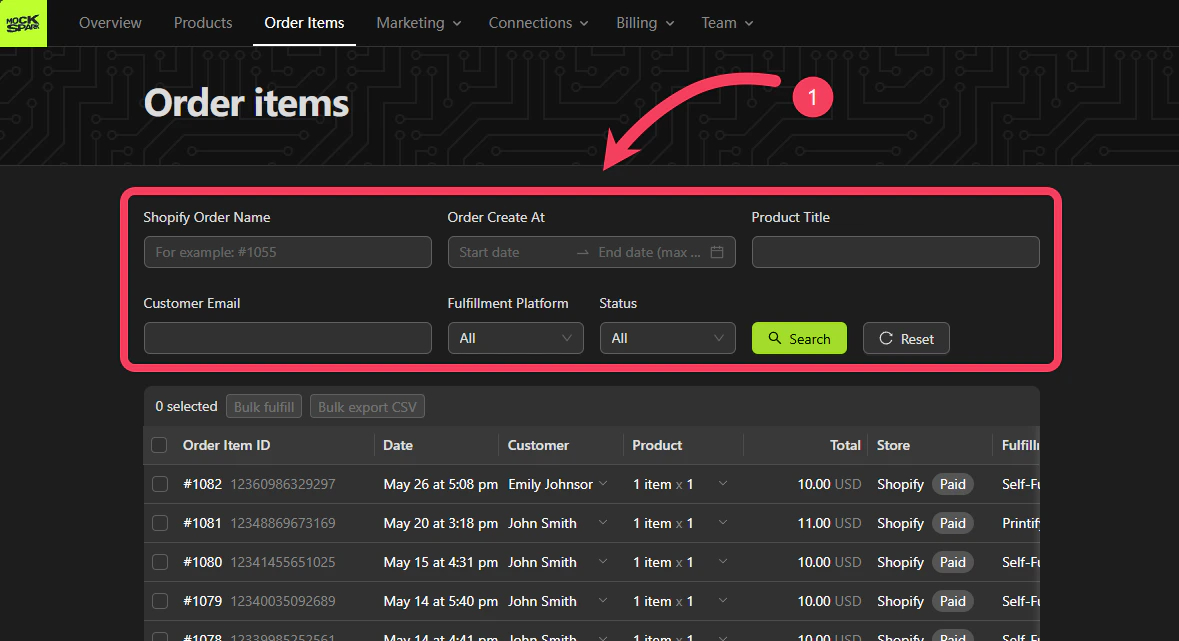
The search area in the Order Items section supports the following six filter options:
Shopify Order Name: Unique identifier for the order that appears on the Shopify order. For example, #1000 or _Store1001.Order Create At: The date and time when the Order-Item was created. You can filter by a date range, with support for searching up to the most recent 90 daysProduct Title: The product title with the Order-Item. Supports partial keyword search.Customer Email: The customer’s email address associated with the Order-Item.Fulfillment Platform: The fulfillment platform responsible for processing the product in the Order-Item.Status: The status of the Order-Item. To learn more, see our Status of Order-Item Explained
You can apply multiple filters at once to refine your search. Click the Search button to view Order-Items that match your selected criteria.
Actions for a Single Order-Item
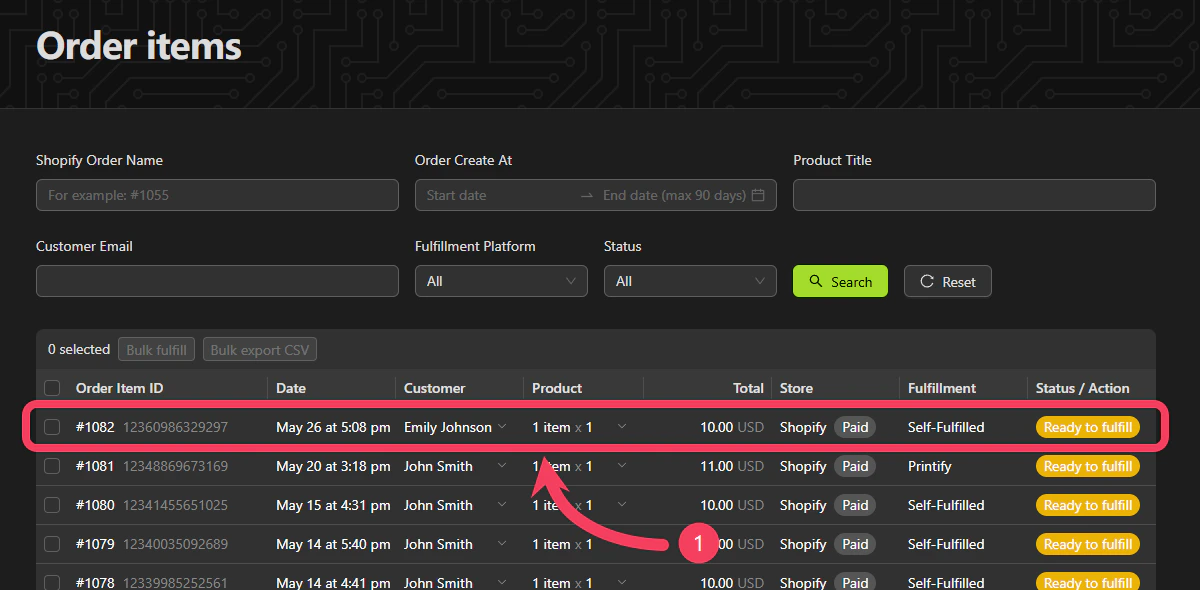
Each row in the list represents a single Order-Item. Click on a row to view the detailed page for that specific Order-Item.
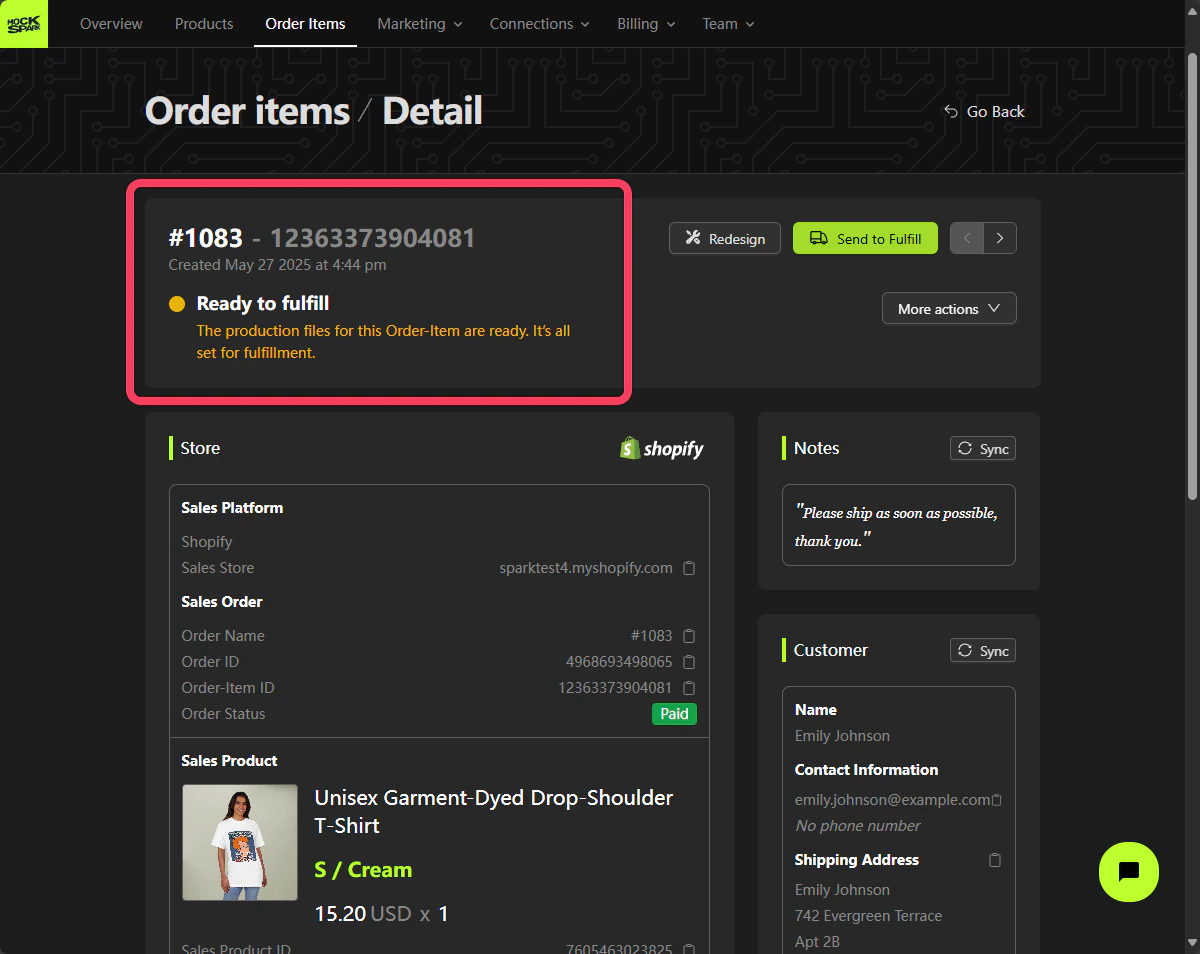
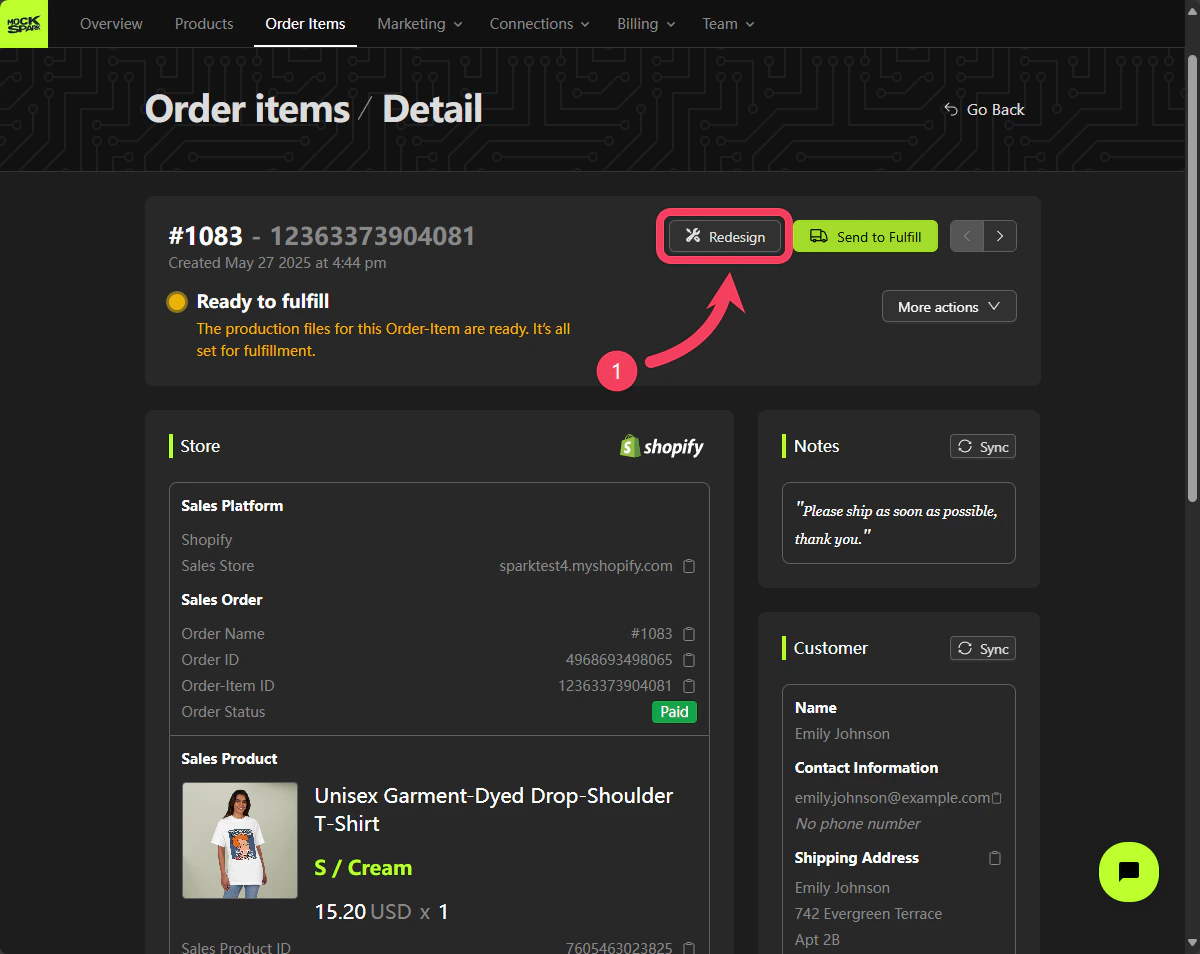
At the top of the Order-Item detail page, you can view key information about the Order-Item, including its creation date, status, and more.
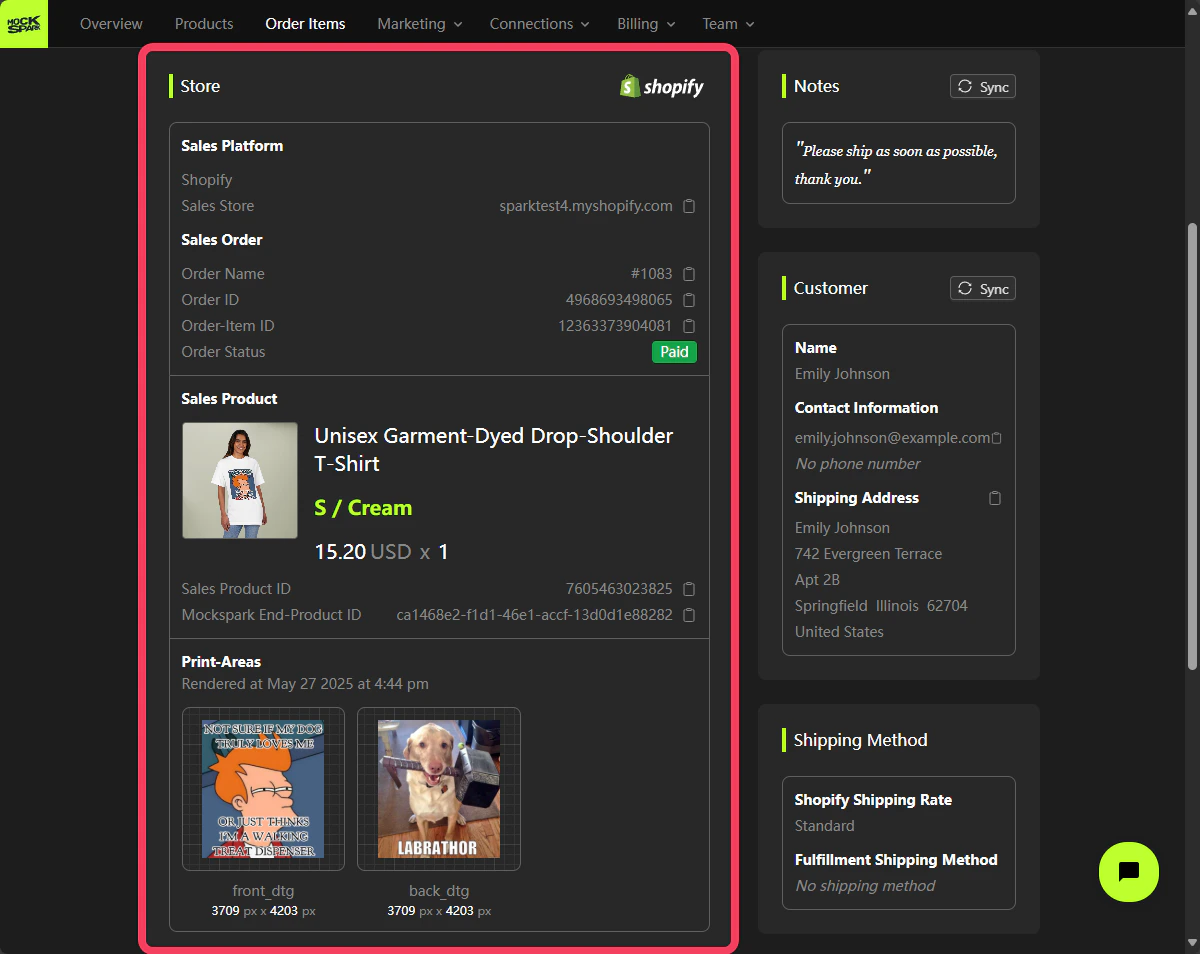
In the Store section of the detail page, you can view various details about this Order-Item as it appears on the sales platform, such as Shopify.
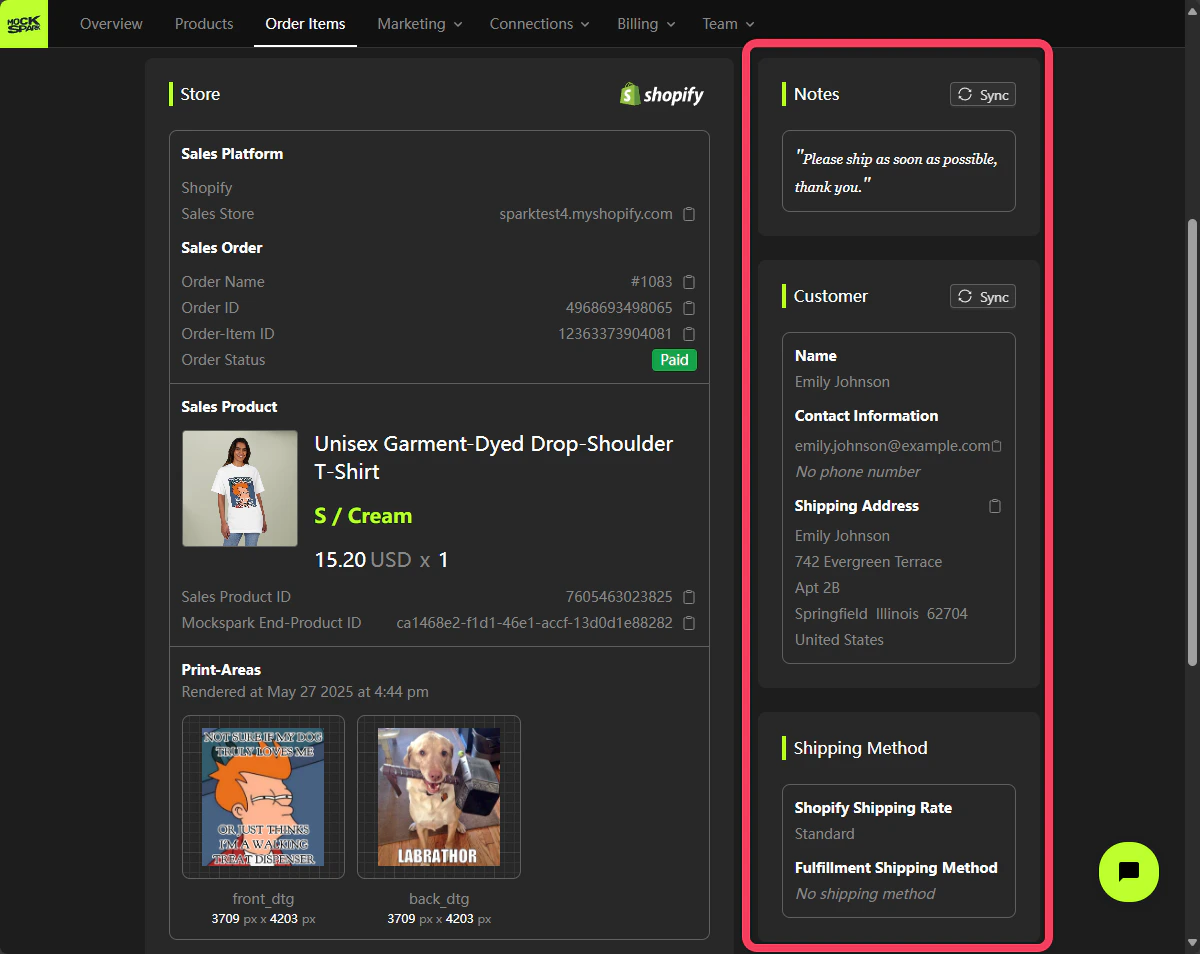
On the left side of the Store section, you’ll find information such as Notes, Customer, and Shipping Method for this Order-Item.
If the customer updates details such as Notes or Customer information on the sales platform (for example, Shopify) after placing the order, you can click the Sync button to update the Order-Item accordingly.
You can also adjust the design of this Order-Item by clicking the Redesign button and making changes in the Product Personalizer.
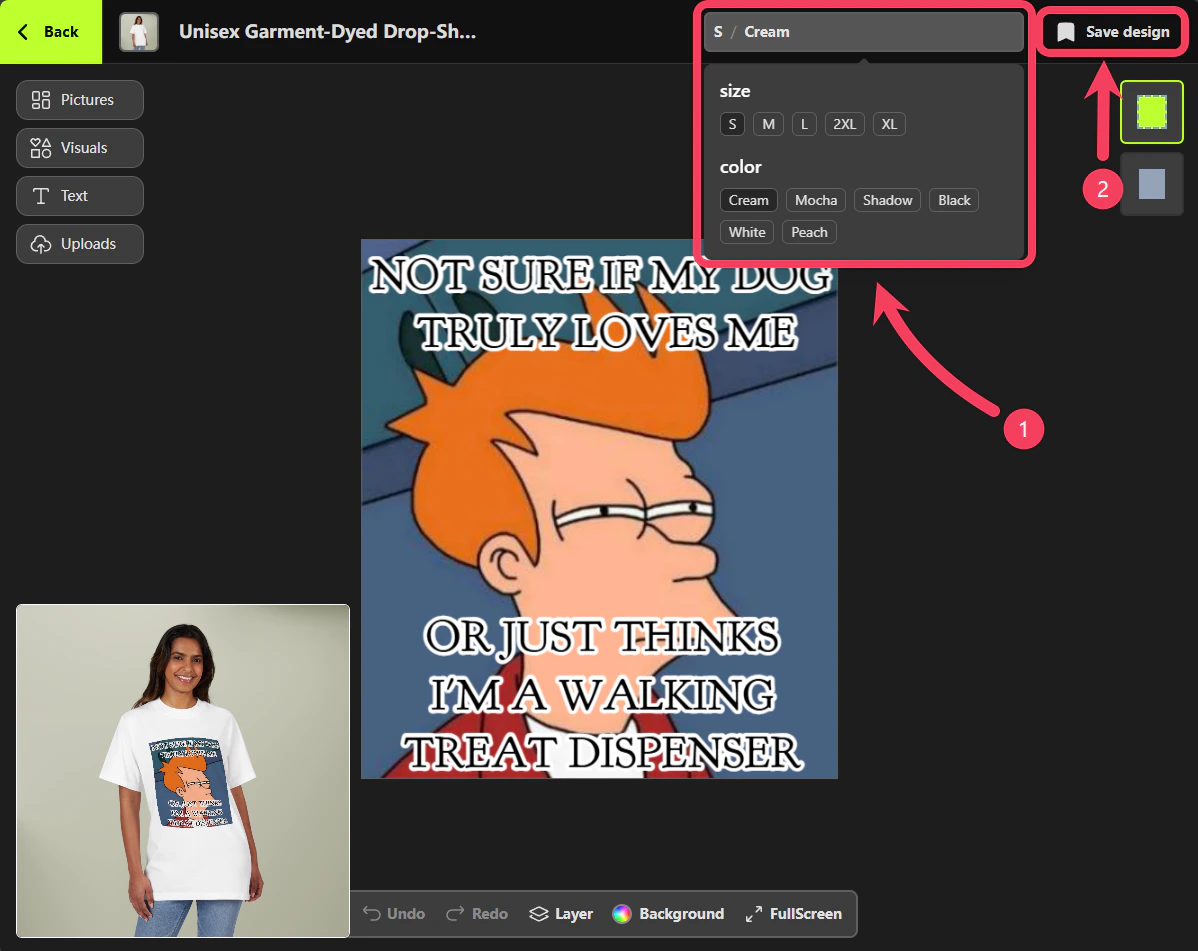
In the Product Personalizer, you can not only edit the design of the Order-Item but also change the associated variant, such as the product size or style.
Click Save Design to save your changes.
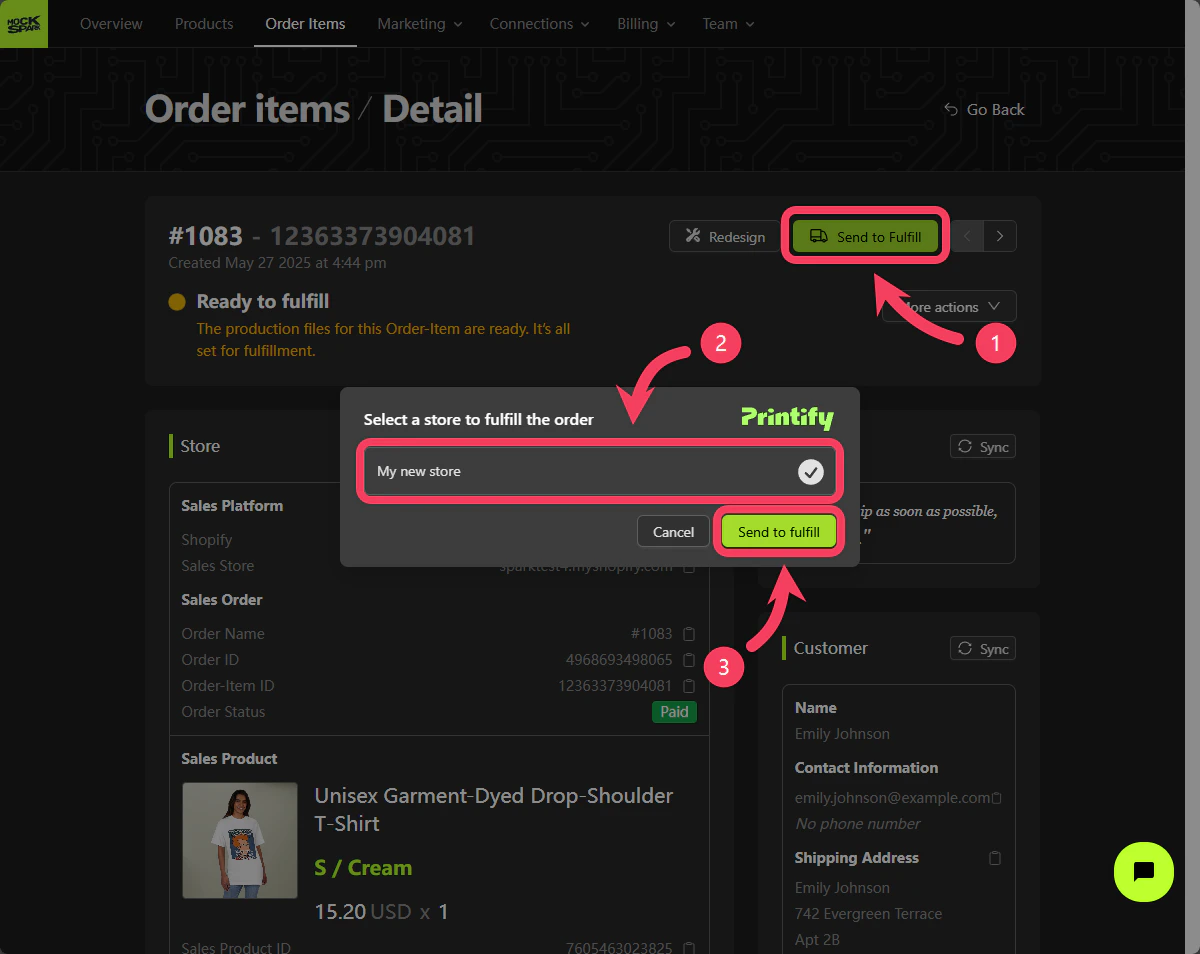
Steps to fulfill this Order-Item:
- Click the Send to Fulfill button at the top of the Order-Item detail page.
- In the dialog box, enter the required information for fulfilling this Order-Item. The form fields may vary depending on the fulfillment platform you are using.
- Click the Send to Fulfill button in the dialog box to submit this Order-Item to the assigned fulfillment platform.
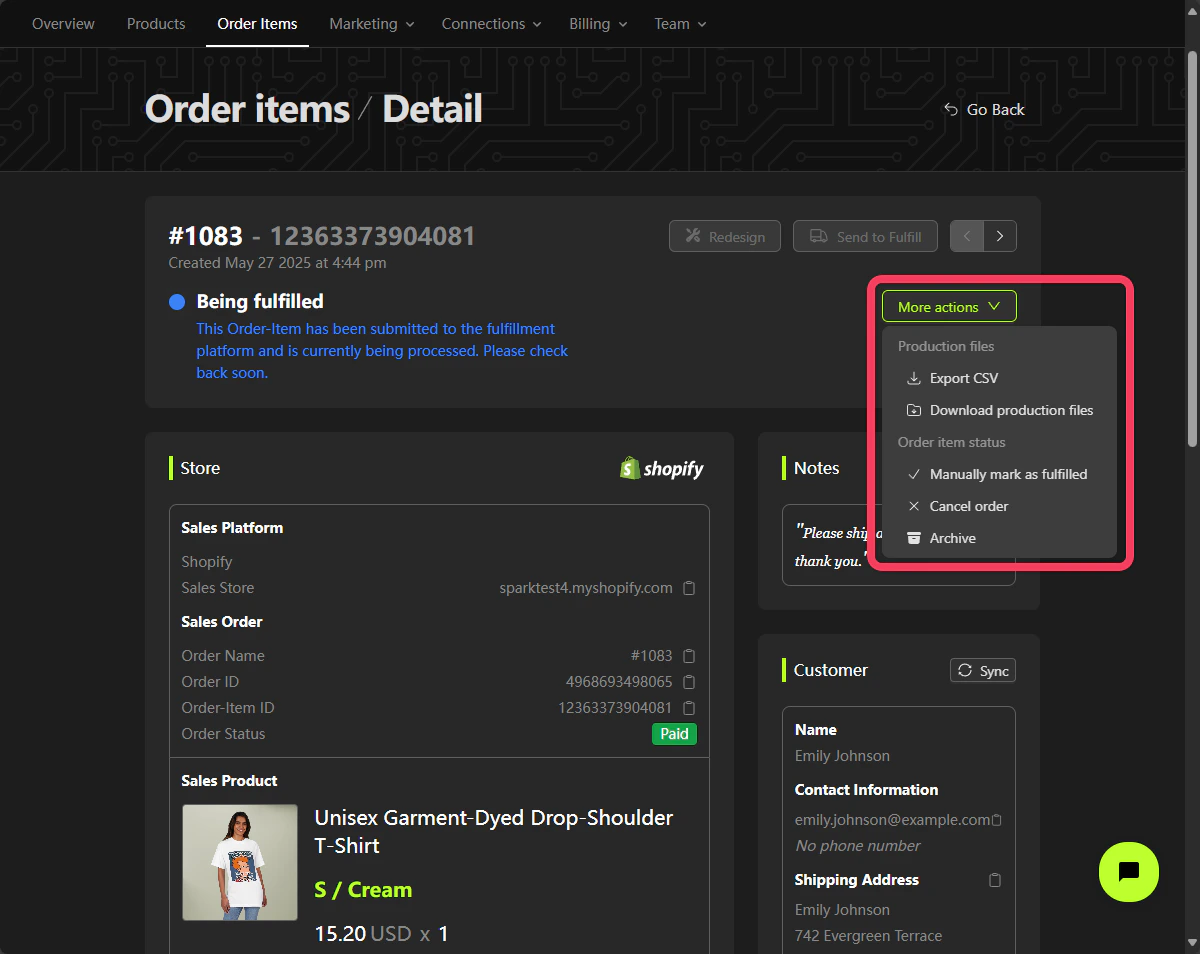
Click Move actions to open a dropdown menu with additional available options:
Export CSV: Export the data for this Order-Item as a CSV file.Download production files: Download the production files for this Order-Item as a ZIP file.Manually mark as fulfilled: Manually mark this Order-Item as Fulfilled.Cancel order: Manually mark this Order-Item as Canceled.Archive: Manually mark this Order-Item as Archived.
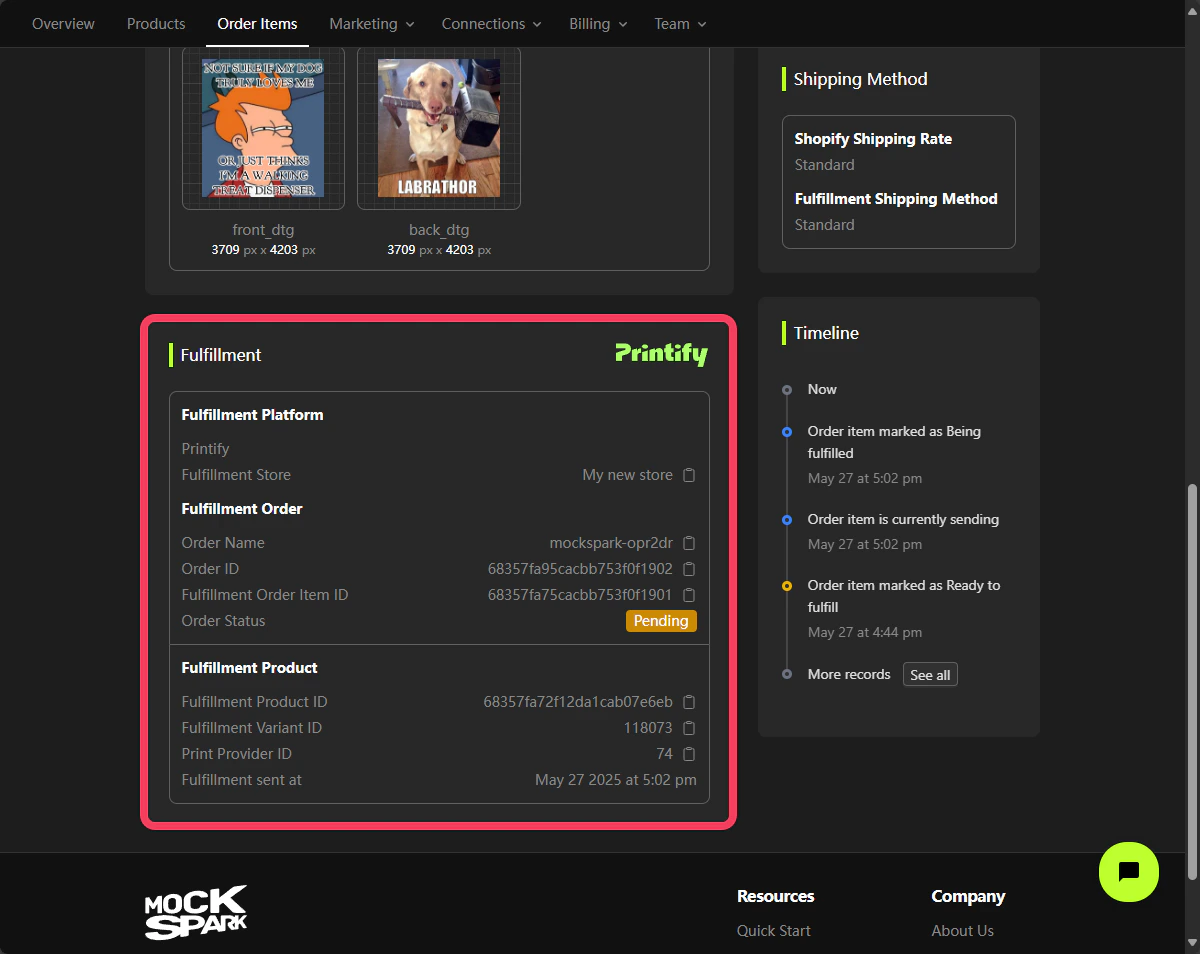
In the Fulfillment section of the detail page, you can view all relevant information about this Order-Item as it appears on the fulfillment platform, such as Printify.
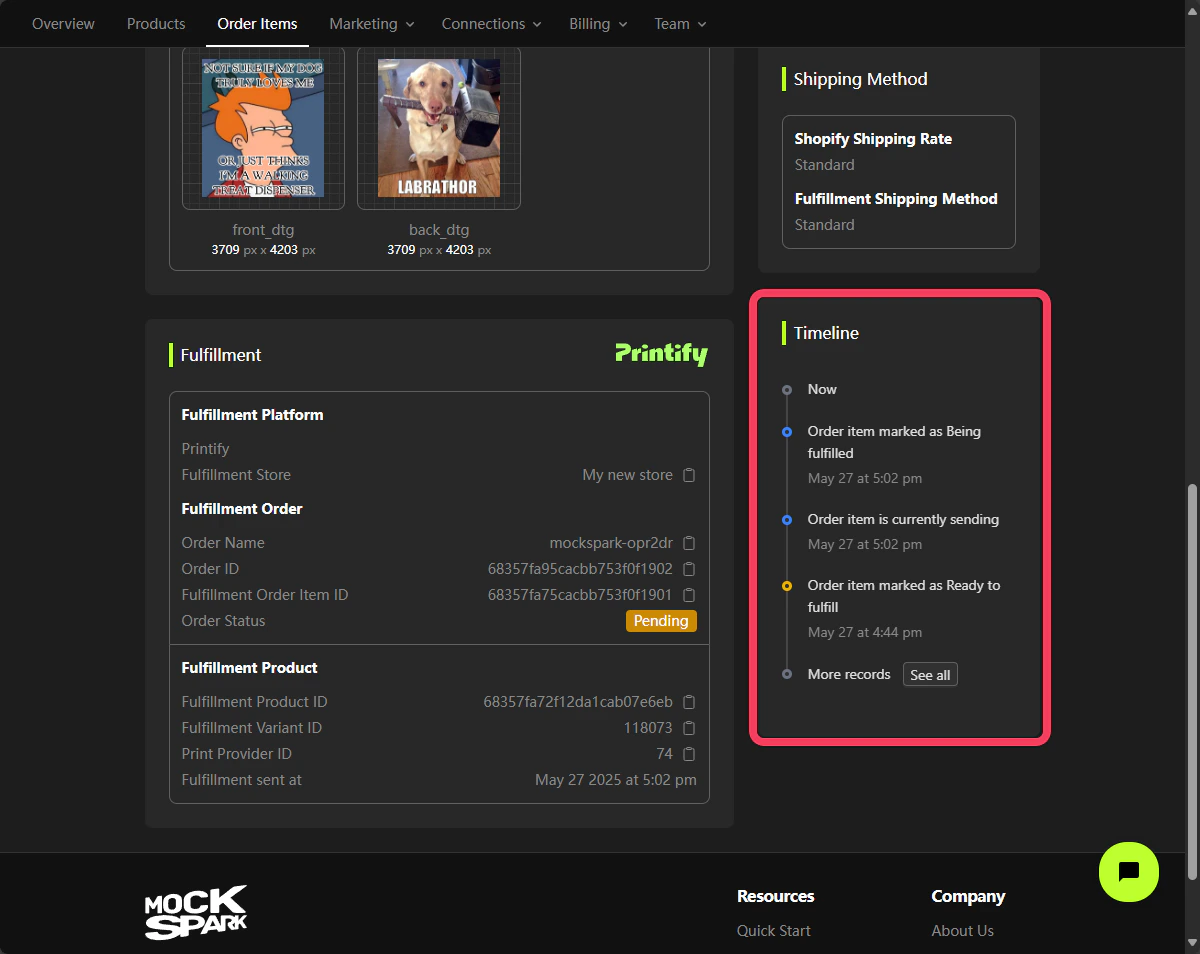
In the Timeline section of the detail page, you can view the history of actions and updates related to this Order-Item.
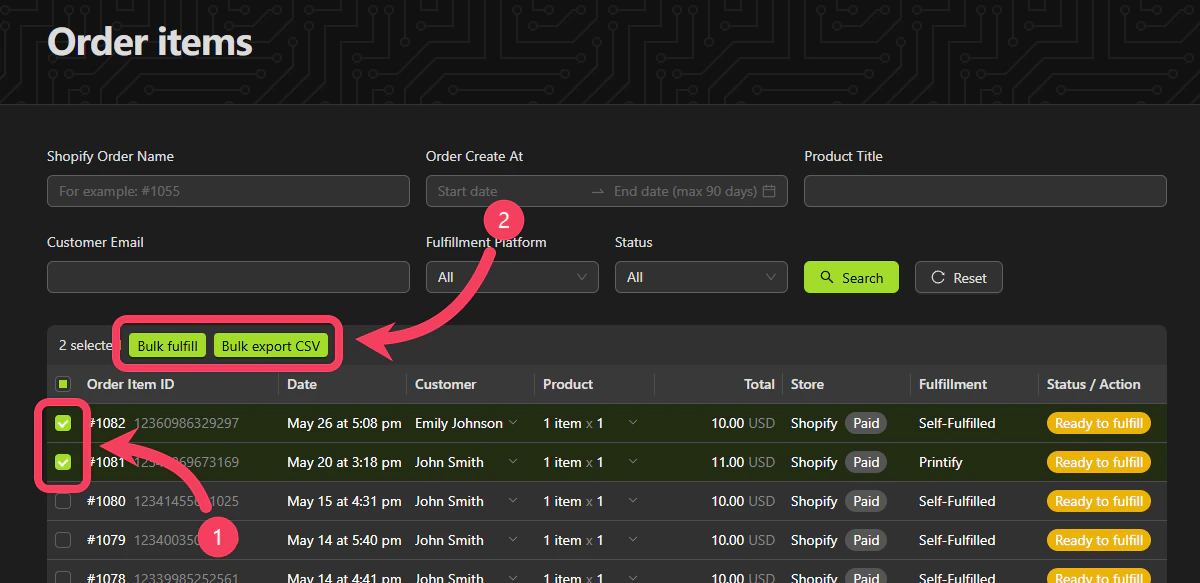
Bulk Actions for Multiple Order-Items
- On the list page, select the Order-Items you want to take action on. Each row represents a single Order-Item.
- You can bulk fulfill the selected Order-Items or export them as a CSV file.
Status of Order-Item Explained
- status: Generating
This Order-Item has been placed and is currently in the queue to render the customer’s design into the production files.
- status: Ready to fulfill
The production files for this Order-Item have been successfully rendered and are now ready for fulfillment. Please review the details and confirm everything is correct before sending it to the assigned fulfillment platform.
- status: Sending
This Order-Item is currently being sent to the assigned fulfillment platform.
- status: Being fulfilled
Fulfillment has started. The product in this Order-Item is currently being picked, printed, or packaged. You can track its progress in the order view on the assigned fulfillment platform.
- status: Fulfilled
This Order-Item has been printed and packaged, but it may not have shipped yet. Please check the tracking details in the order view on the assigned fulfillment platform.
- status: On hold
This Order-Item was paused and needs your attention. Reasons may include stock issues, design problems, or missing info.
- status: Canceled
This Order-Item has been canceled, either by you or by the fulfillment platform.
- status: Archived
This Order-Item has been archived and is now hidden from the list view.
Order-Item Process