> ## Documentation Index
> Fetch the complete documentation index at: https://help.mockspark.com/llms.txt
> Use this file to discover all available pages before exploring further.
# Order-Items
> Manage your customizable product orders more efficiently
export const ColorText = ({color, text}) => {
return {text};
};
## What is a Order-Item?
When a customer places a customized product order through your store and completes payment, the order is automatically synced with MockSpark. Once we receive the order details, we break it down by product into smaller sub-orders, which we refer to as **Order-Items**.
**The relationship between orders and order items**: From a customer perspective, an order is a list of selected products. For example, an order might contain two cups and a hat. Each product on that list is an order item. From a store perspective, an order is a list of order items. It is part of the store's data.
Breaking down a single order into multiple **Order-Items** offers several key benefits:
1. A single order may include both customizable products fulfilled by MockSpark and other unrelated products sold in your store. Since we don’t handle those unrelated items, automatically filtering them out helps simplify order management and reduce confusion for you.
2. If a customer places one order for a T-shirt and later places another order for a hat, and both items are fulfilled through the same platform (such as Printify), we can now consolidate these Order Items based on the shipping address before sending them to the fulfillment provider. This significantly reduces shipping costs by avoiding duplicate shipment fees for items going to the same customer.
3. If an order contains an item that is out of stock or has another issue, we can easily move forward with fulfilling the available items without requiring you to manually split the order. This helps ensure faster fulfillment and reduces the risk of losing the entire order.
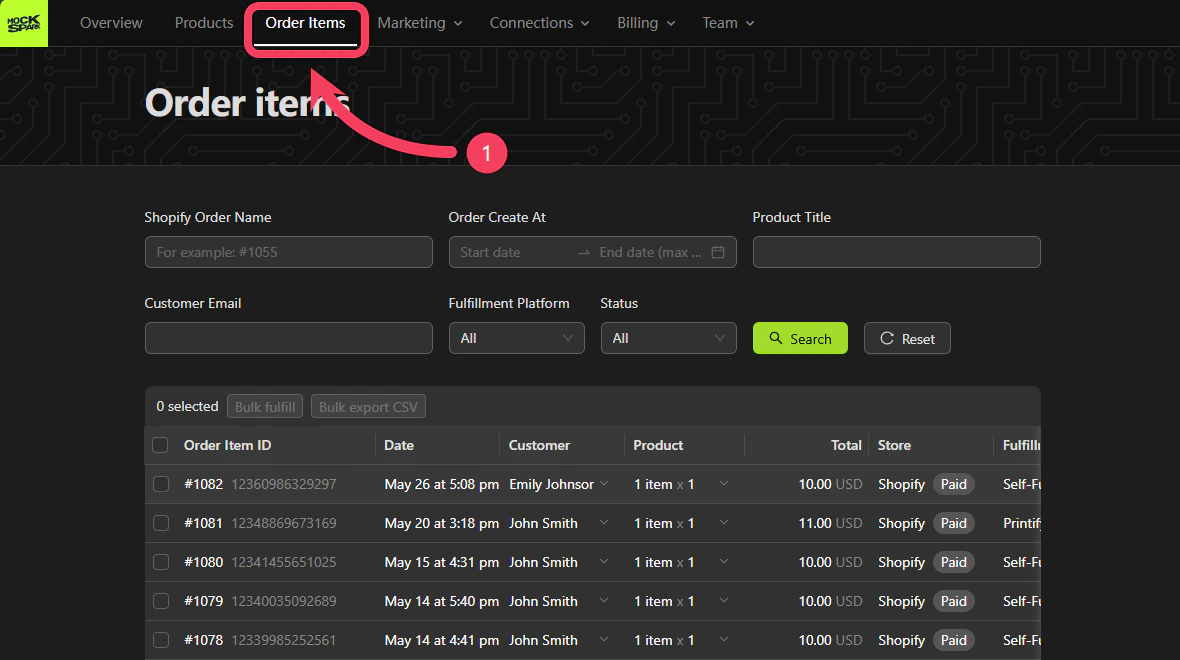
Go to the **Order Items** section from the top navigation bar.
 ## Search
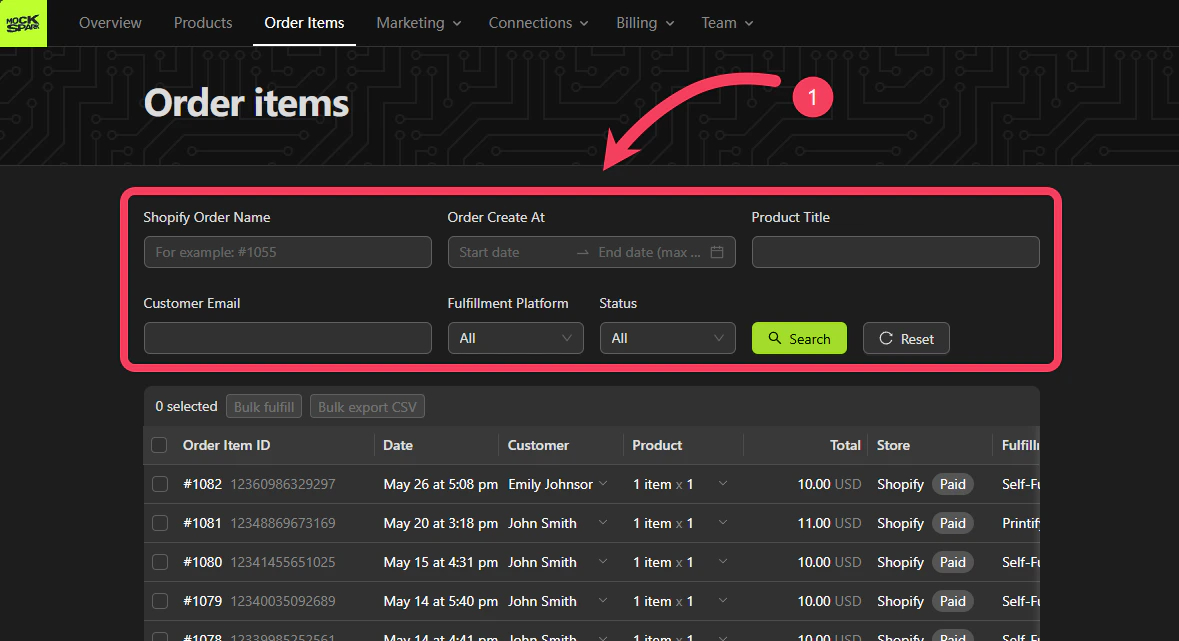
The search area in the **Order Items** section supports the following six filter options:
1. `Shopify Order Name`: Unique identifier for the order that appears on the Shopify order. For example, #1000 or \_Store1001.
2. `Order Create At`: The date and time when the Order-Item was created. You can filter by a date range, with support for searching up to the most recent 90 days
3. `Product Title`: The product title with the Order-Item. Supports partial keyword search.
4. `Customer Email`: The customer's email address associated with the Order-Item.
5. `Fulfillment Platform`: The fulfillment platform responsible for processing the product in the Order-Item.
6. `Status`: The status of the Order-Item. To learn more, see our [Status of Order-Item Explained](/docs/order-items/order-items#status-of-order-item-explained)
You can apply multiple filters at once to refine your search. Click the **Search** button to view Order-Items that match your selected criteria.
## Search
The search area in the **Order Items** section supports the following six filter options:
1. `Shopify Order Name`: Unique identifier for the order that appears on the Shopify order. For example, #1000 or \_Store1001.
2. `Order Create At`: The date and time when the Order-Item was created. You can filter by a date range, with support for searching up to the most recent 90 days
3. `Product Title`: The product title with the Order-Item. Supports partial keyword search.
4. `Customer Email`: The customer's email address associated with the Order-Item.
5. `Fulfillment Platform`: The fulfillment platform responsible for processing the product in the Order-Item.
6. `Status`: The status of the Order-Item. To learn more, see our [Status of Order-Item Explained](/docs/order-items/order-items#status-of-order-item-explained)
You can apply multiple filters at once to refine your search. Click the **Search** button to view Order-Items that match your selected criteria.
 ## Actions for a Single Order-Item
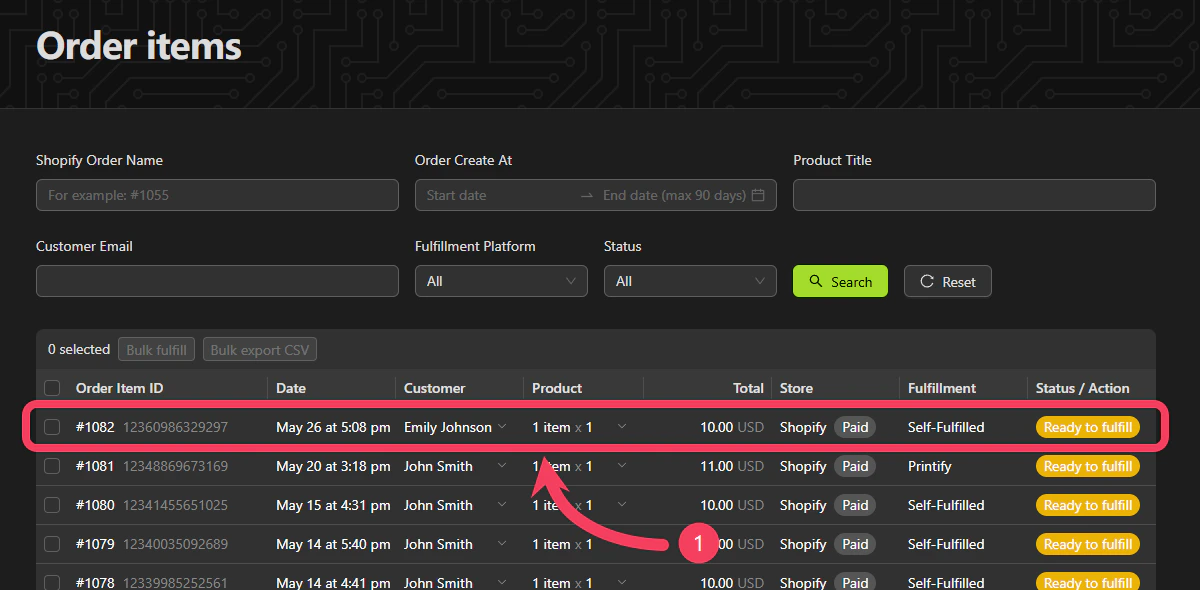
Each row in the list represents a single Order-Item. Click on a row to view the detailed page for that specific Order-Item.
## Actions for a Single Order-Item
Each row in the list represents a single Order-Item. Click on a row to view the detailed page for that specific Order-Item.
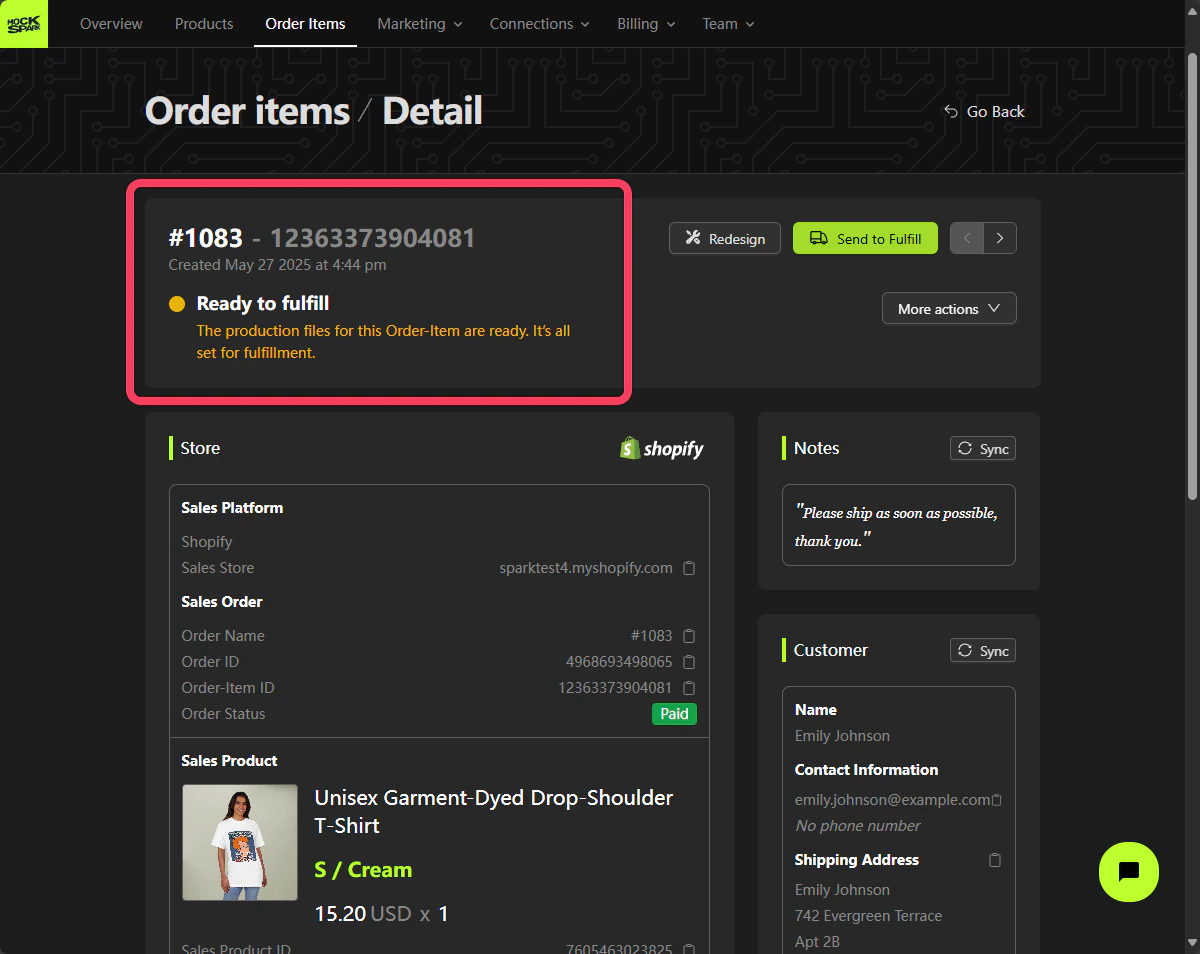
 At the top of the Order-Item detail page, you can view key information about the Order-Item, including its creation date, status, and more.
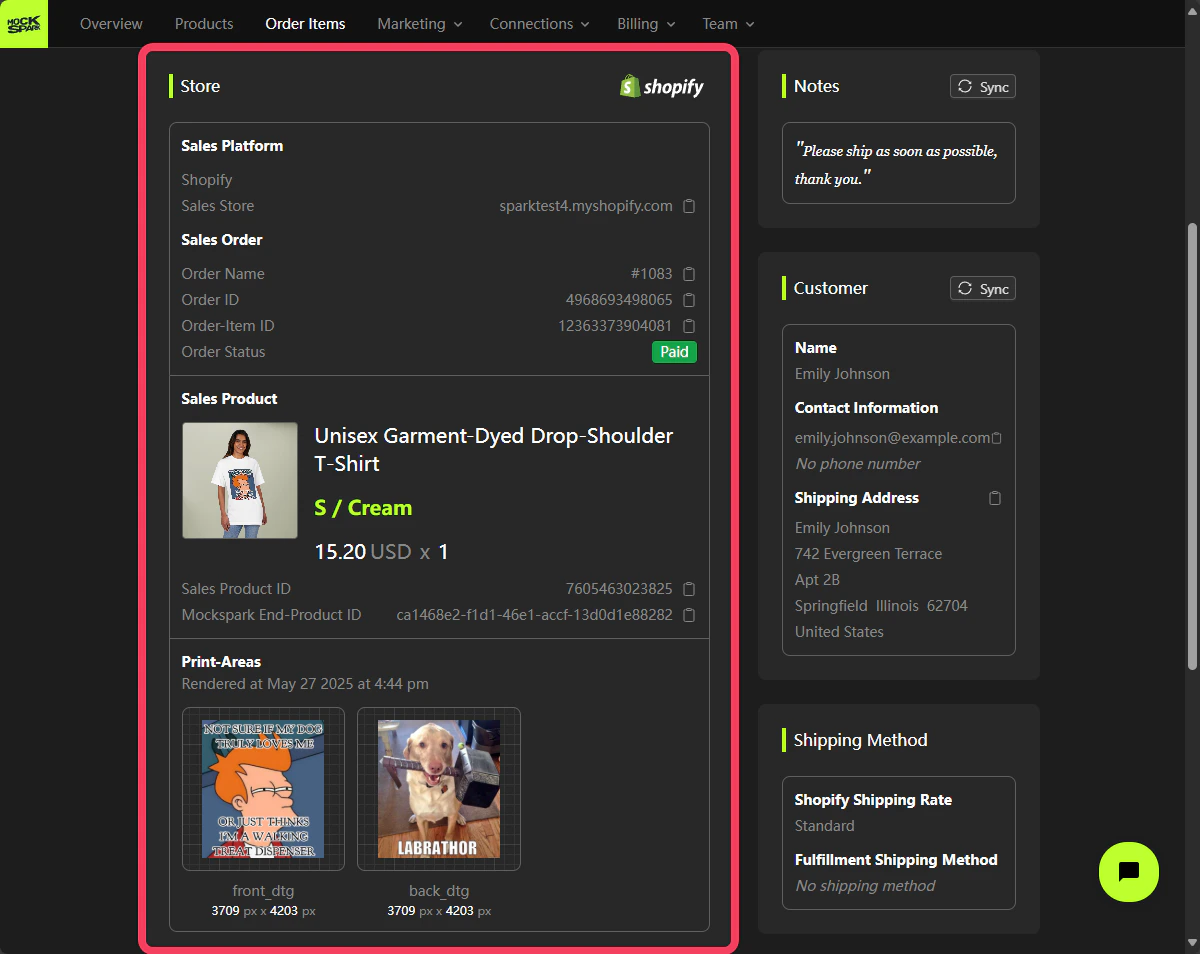
 In the `Store` section of the detail page, you can view various details about this Order-Item as it appears on the sales platform, such as Shopify.
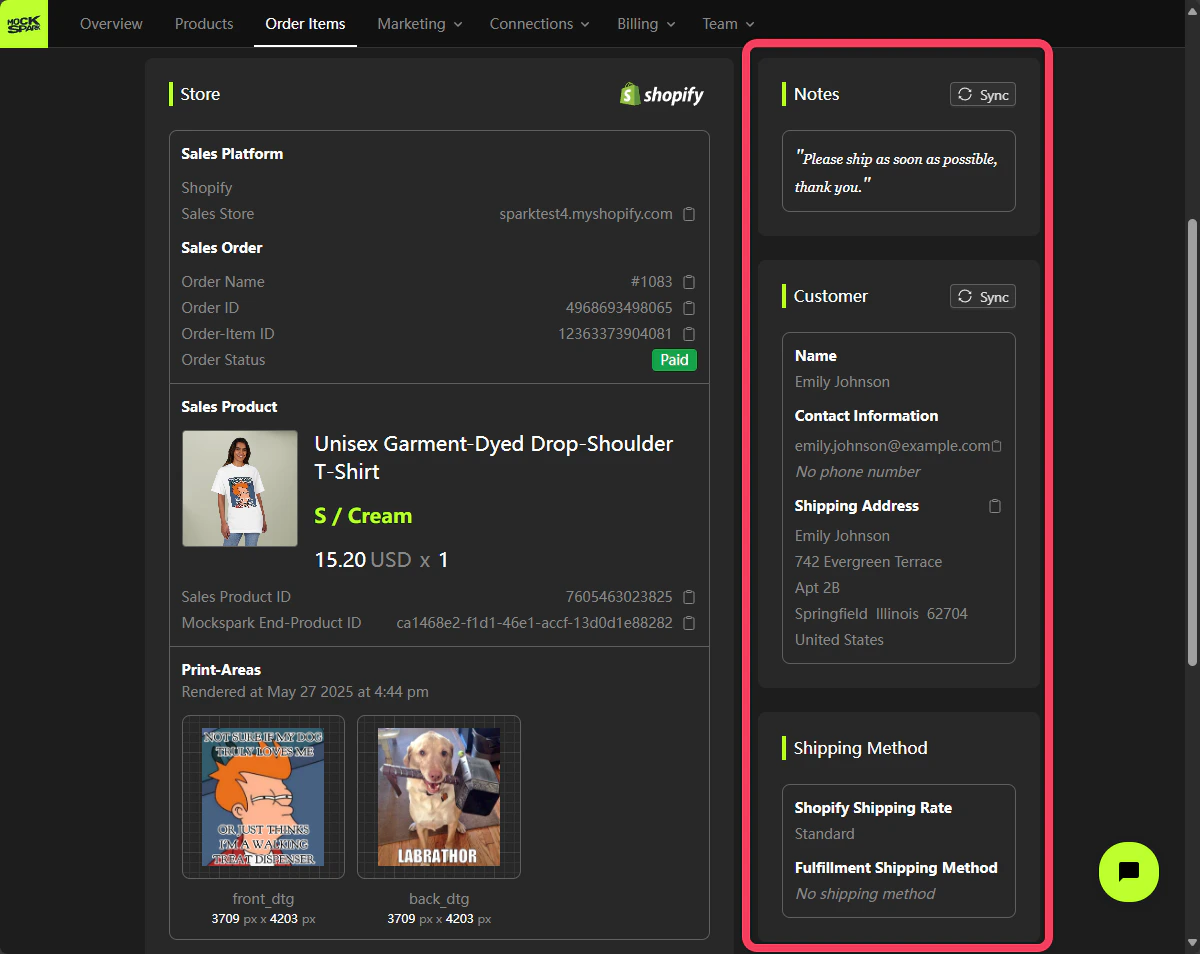
 On the left side of the `Store` section, you’ll find information such as **Notes**, **Customer**, and **Shipping Method** for this Order-Item.
If the customer updates details such as Notes or Customer information on the sales platform (for example, Shopify) after placing the order, you can click the **Sync** button to update the Order-Item accordingly.
On the left side of the `Store` section, you’ll find information such as **Notes**, **Customer**, and **Shipping Method** for this Order-Item.
If the customer updates details such as Notes or Customer information on the sales platform (for example, Shopify) after placing the order, you can click the **Sync** button to update the Order-Item accordingly.
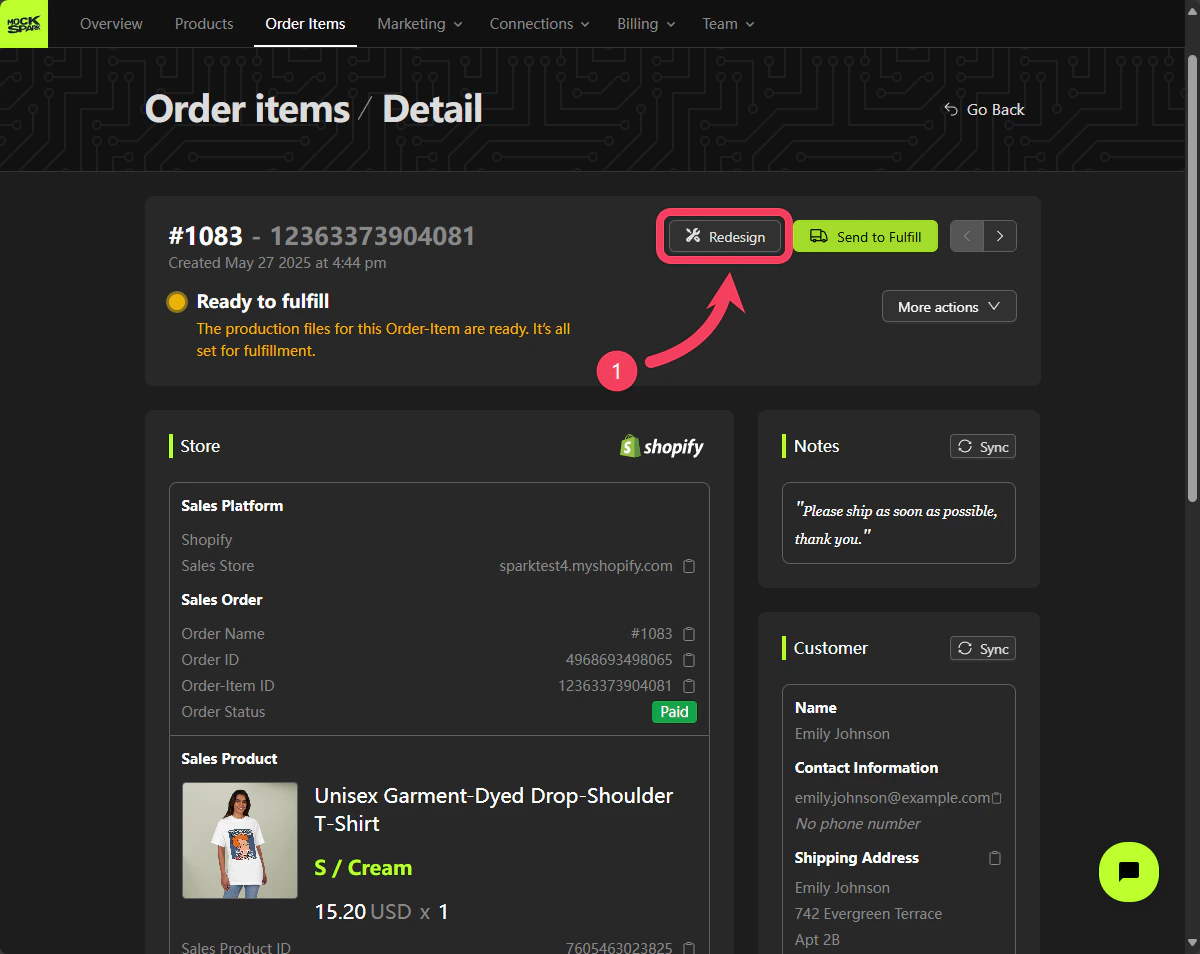
 You can also adjust the design of this Order-Item by clicking the **Redesign** button and making changes in the `Product Personalizer`.
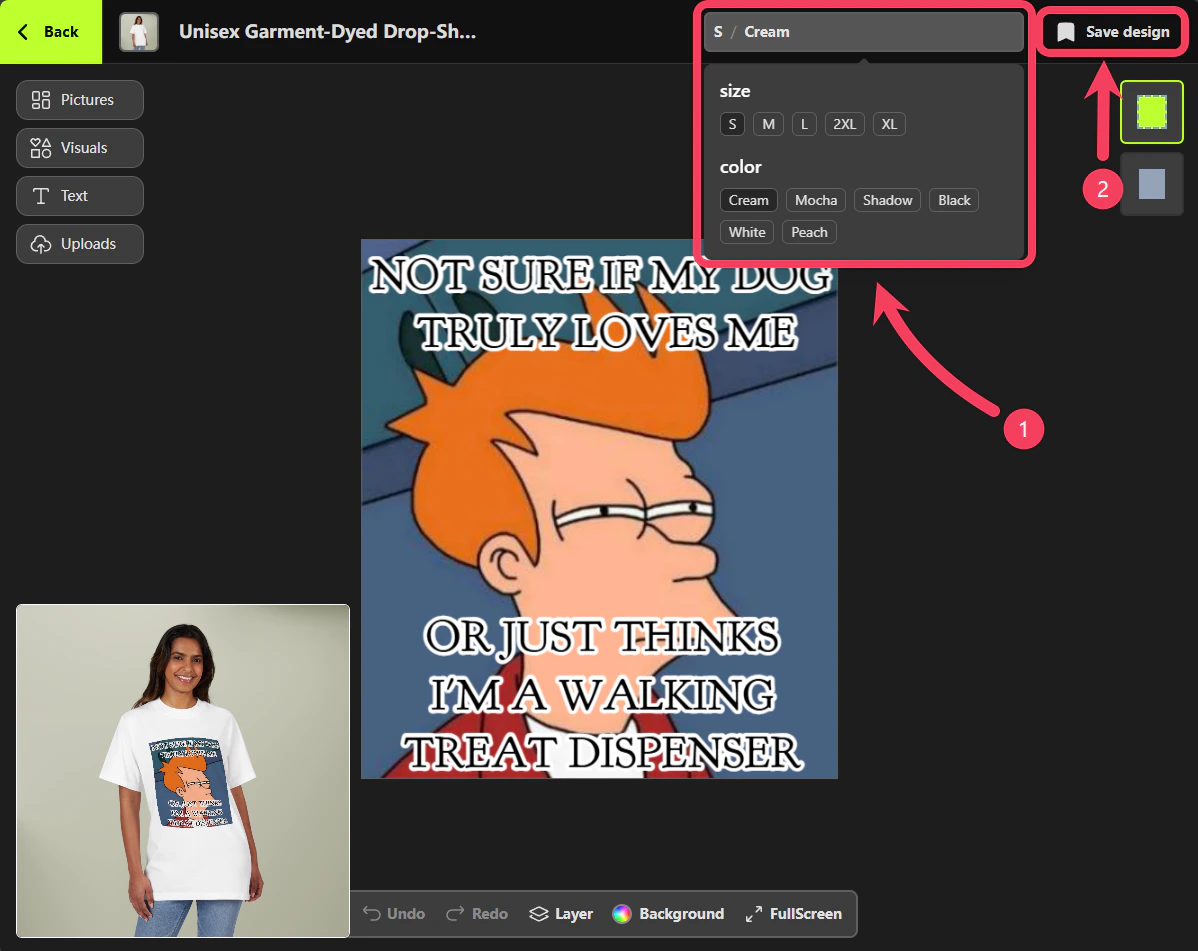
 In the `Product Personalizer`, you can not only edit the design of the Order-Item but also change the associated **variant**, such as the product size or style.
Click **Save Design** to save your changes.
In the `Product Personalizer`, you can not only edit the design of the Order-Item but also change the associated **variant**, such as the product size or style.
Click **Save Design** to save your changes.
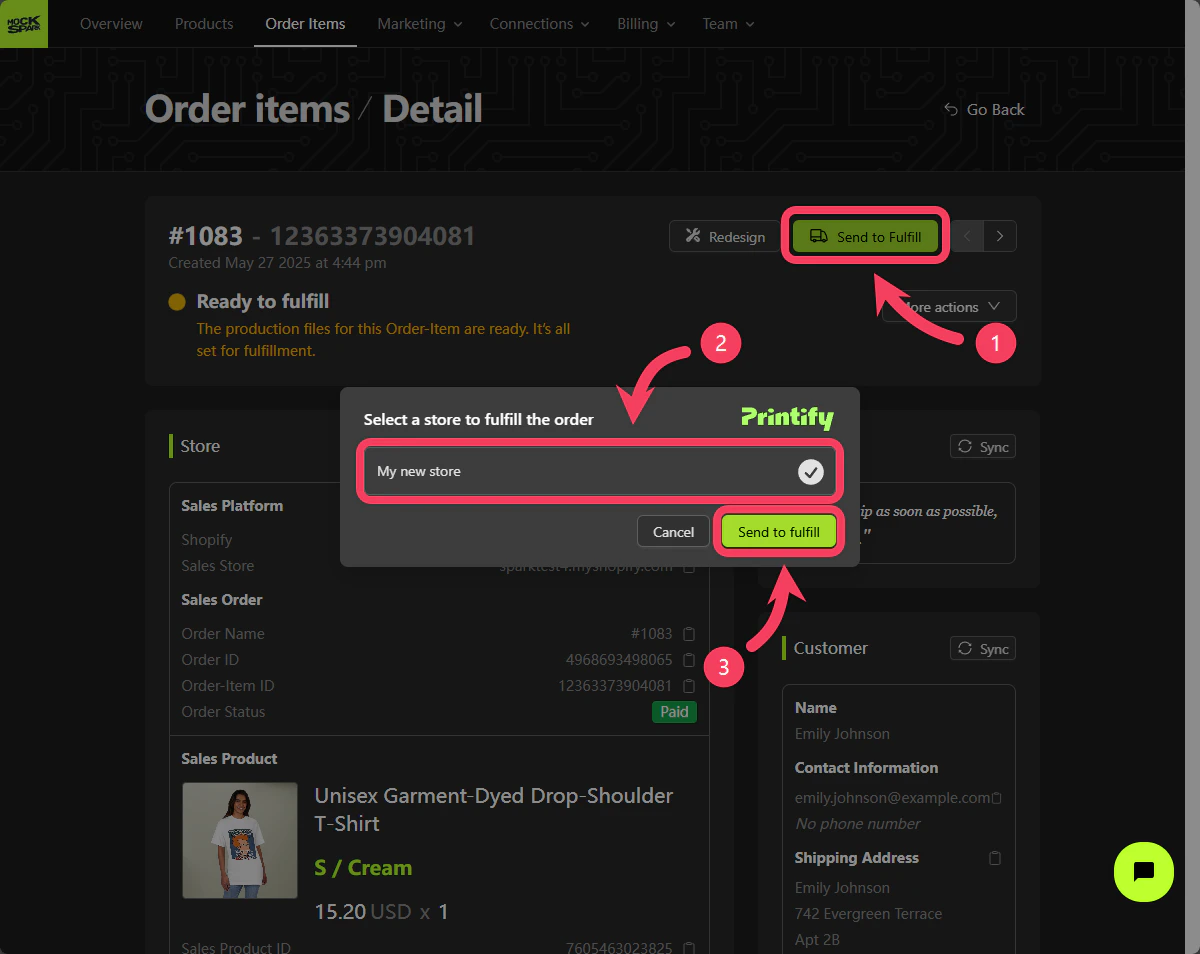
 Steps to fulfill this Order-Item:
1. Click the **Send to Fulfill** button at the top of the Order-Item detail page.
2. In the dialog box, enter the required information for fulfilling this Order-Item. The form fields may vary depending on the fulfillment platform you are using.
3. Click the **Send to Fulfill** button in the dialog box to submit this Order-Item to the assigned fulfillment platform.
Steps to fulfill this Order-Item:
1. Click the **Send to Fulfill** button at the top of the Order-Item detail page.
2. In the dialog box, enter the required information for fulfilling this Order-Item. The form fields may vary depending on the fulfillment platform you are using.
3. Click the **Send to Fulfill** button in the dialog box to submit this Order-Item to the assigned fulfillment platform.
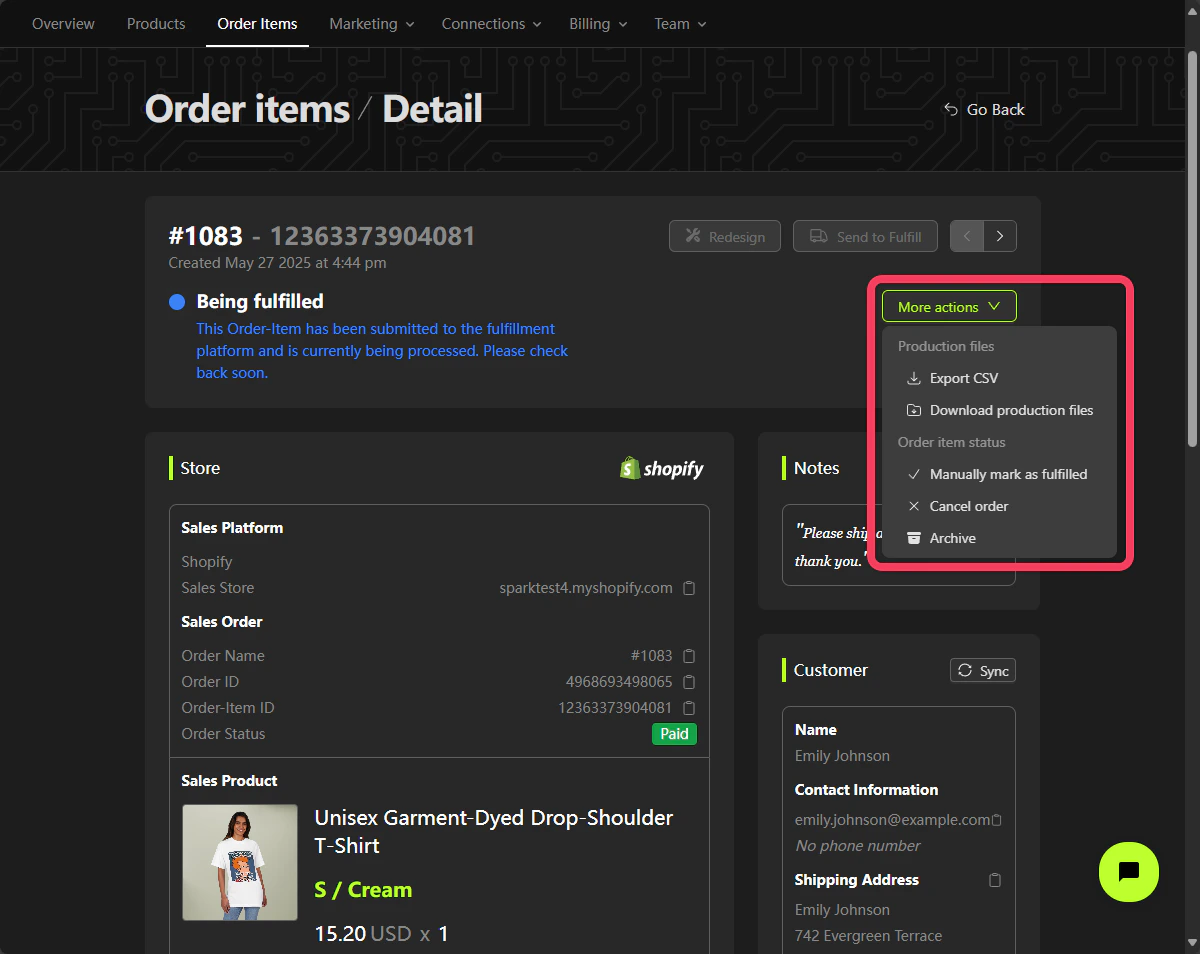
 Click **Move actions** to open a dropdown menu with additional available options:
1. `Export CSV`: Export the data for this Order-Item as a CSV file.
2. `Download production files`: Download the production files for this Order-Item as a ZIP file.
3. `Manually mark as fulfilled`: Manually mark this Order-Item as `Fulfilled`.
4. `Cancel order`: Manually mark this Order-Item as `Canceled`.
5. `Archive`: Manually mark this Order-Item as `Archived`.
Click **Move actions** to open a dropdown menu with additional available options:
1. `Export CSV`: Export the data for this Order-Item as a CSV file.
2. `Download production files`: Download the production files for this Order-Item as a ZIP file.
3. `Manually mark as fulfilled`: Manually mark this Order-Item as `Fulfilled`.
4. `Cancel order`: Manually mark this Order-Item as `Canceled`.
5. `Archive`: Manually mark this Order-Item as `Archived`.
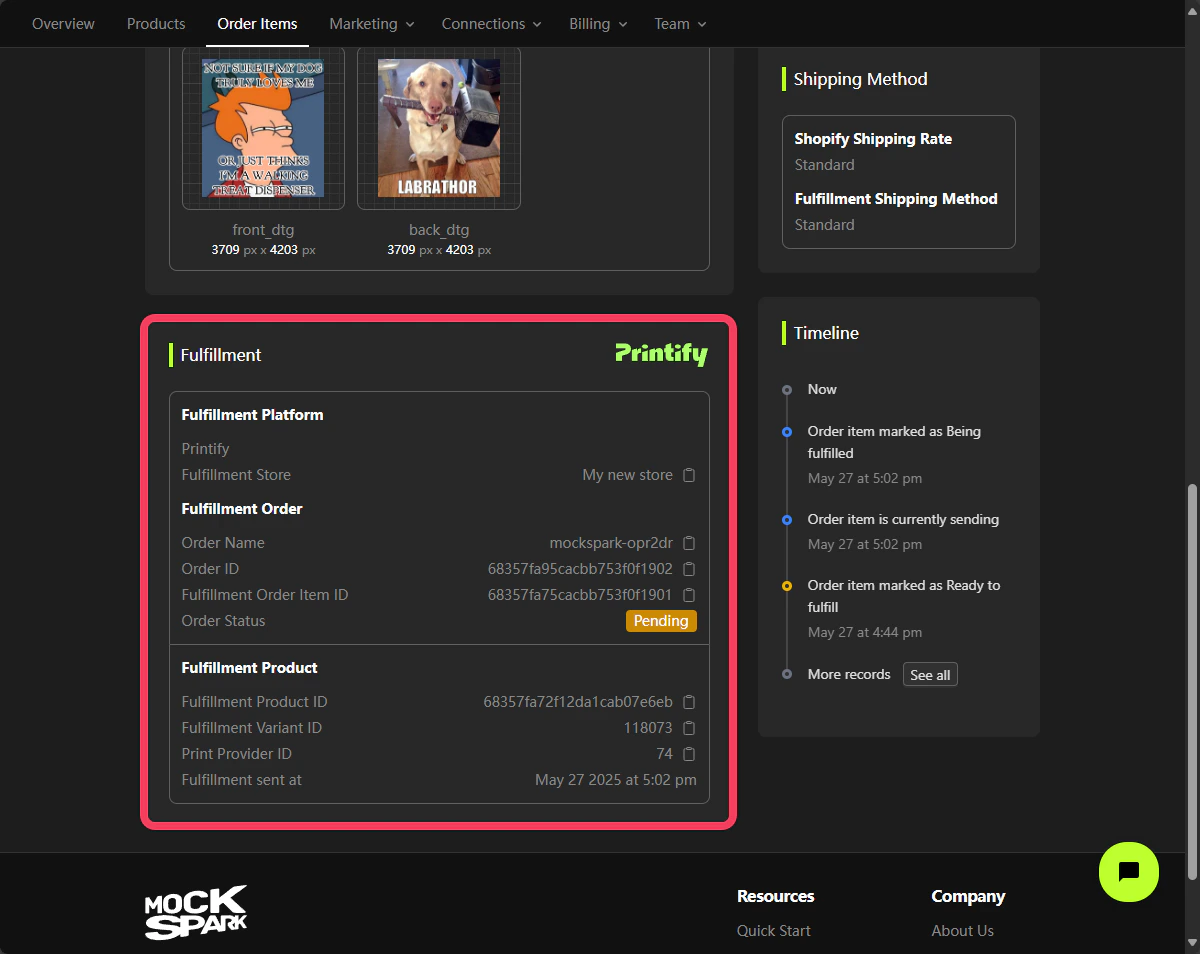
 In the `Fulfillment` section of the detail page, you can view all relevant information about this Order-Item as it appears on the fulfillment platform, such as Printify.
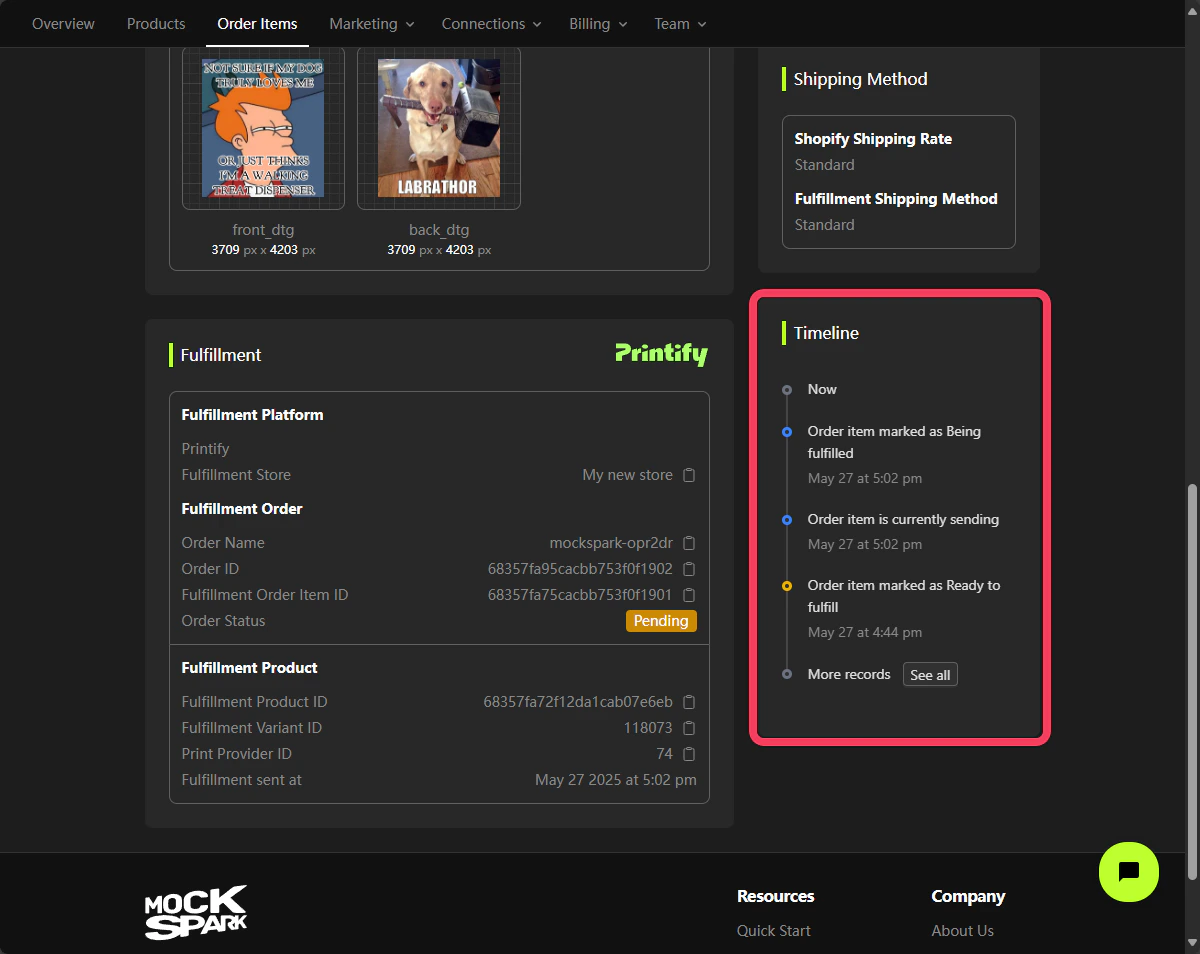
 In the `Timeline` section of the detail page, you can view the history of actions and updates related to this Order-Item.
 ## Bulk Actions for Multiple Order-Items
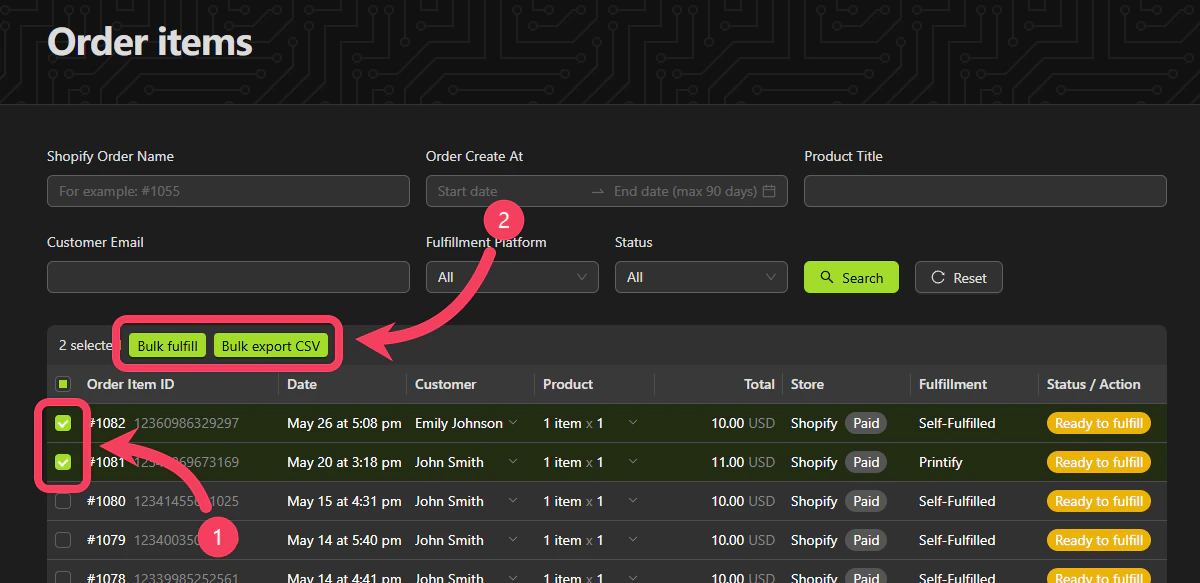
1. On the list page, select the Order-Items you want to take action on. Each row represents a single Order-Item.
2. You can **bulk fulfill** the selected Order-Items or export them as a **CSV** file.
## Bulk Actions for Multiple Order-Items
1. On the list page, select the Order-Items you want to take action on. Each row represents a single Order-Item.
2. You can **bulk fulfill** the selected Order-Items or export them as a **CSV** file.
 ## Status of Order-Item Explained
1. **status:**
## Status of Order-Item Explained
1. **status:**
*This Order-Item has been placed and is currently in the queue to render the customer's design into the production files.*
2. **status:**
*The production files for this Order-Item have been successfully rendered and are now ready for fulfillment. Please review the details and confirm everything is correct before sending it to the assigned fulfillment platform.*
3. **status:**
*This Order-Item is currently being sent to the assigned fulfillment platform.*
4. **status:**
*Fulfillment has started. The product in this Order-Item is currently being picked, printed, or packaged. You can track its progress in the order view on the assigned fulfillment platform.*
5. **status:**
*This Order-Item has been printed and packaged, but it may not have shipped yet. Please check the tracking details in the order view on the assigned fulfillment platform.*
6. **status:**
*This Order-Item was paused and needs your attention. Reasons may include stock issues, design problems, or missing info.*
7. **status:**
*This Order-Item has been canceled, either by you or by the fulfillment platform.*
8. **status:**
*This Order-Item has been archived and is now hidden from the list view.*
## Order-Item Process
```mermaid theme={null}
flowchart TB
A([Customers place orders on the sales platform]) --> B[MockSpark receives Order-Item]
B --> C[Generate production file]
C --> D{Is production file generated successfully?}
D -->|Yes| E[Order-Item status: \n Ready to fulfill]
D -->|No| F[Order-Item status: \n On hold]
E --> H[Merchant checks production file and delivery info]
H --> I[Send Order-Item to fulfillment platform]
I --> J{Is Order-Item sent successfully?}
J -->|No| L[Order-Item status: \n On hold]
J -->|Yes| K[Order-Item status: \n Being fulfilled]
K --> M[Fulfillment platform completes production and shipping]
M --> N{Is there an error from the fulfillment platform?}
N -->|Yes| O[Order-Item status: \n On hold]
N -->|No| P[Order-Item status: \n Fulfilled]
P --> Q([Receive ❤ positive feedback from customers])
```