> ## Documentation Index
> Fetch the complete documentation index at: https://help.mockspark.com/llms.txt
> Use this file to discover all available pages before exploring further.
# Installation Guide
> Step-by-step instructions for installing the Shopify app and enabling it in your store theme.
# Install the Shopify App
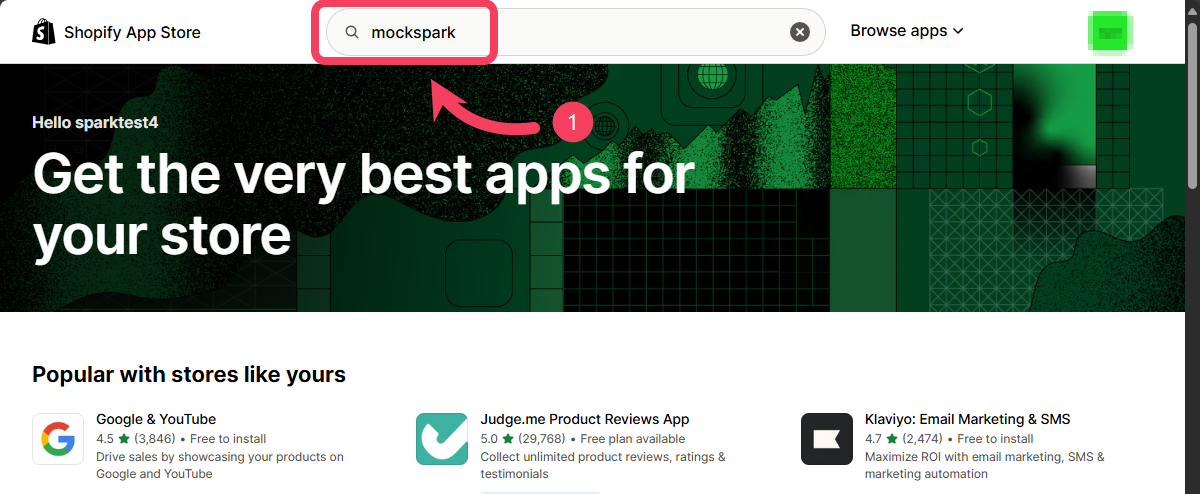
Go to the [Shopify App Store](https://apps.shopify.com/) and type `mockspark` into the search bar at the top. Find the app called **Mockspark Product Personalizer**, then click to open its details page and select Install.
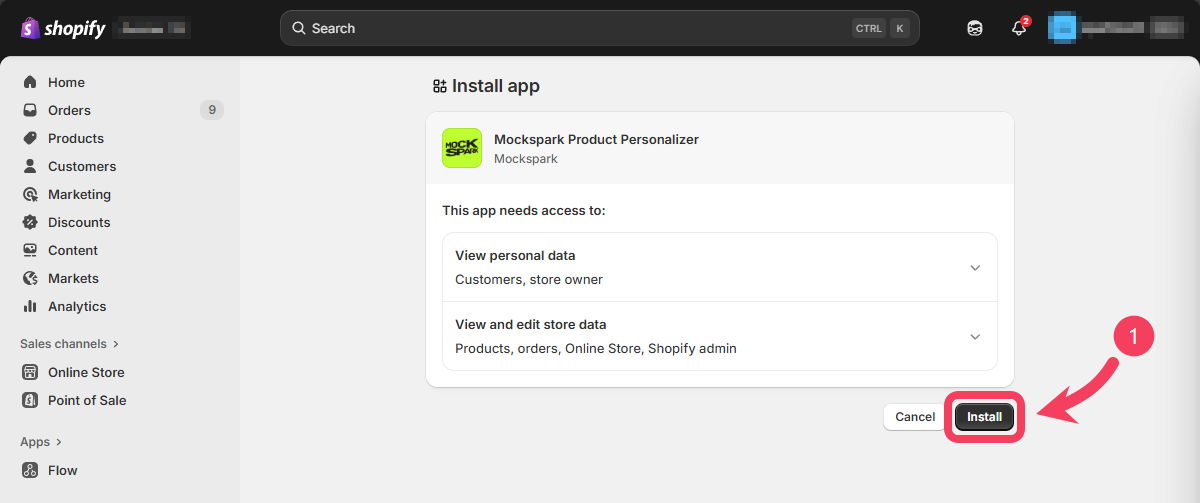
 Shopify will redirect you to your store’s admin page, where you can review the permissions required by the app. Click the **Install** button to begin installation.
If the process completes without any issues, Mockspark will be successfully added to your Shopify store.
Shopify will redirect you to your store’s admin page, where you can review the permissions required by the app. Click the **Install** button to begin installation.
If the process completes without any issues, Mockspark will be successfully added to your Shopify store.
 # Enable the App on Your Theme
After you’ve installed the **Mockspark Product Personalizer** app from the [Shopify App Store](https://apps.shopify.com/mockspark), just follow a few simple steps to enable the app in your current **Online Store Theme**. This will complete the setup and connect Mockspark with your Shopify store.
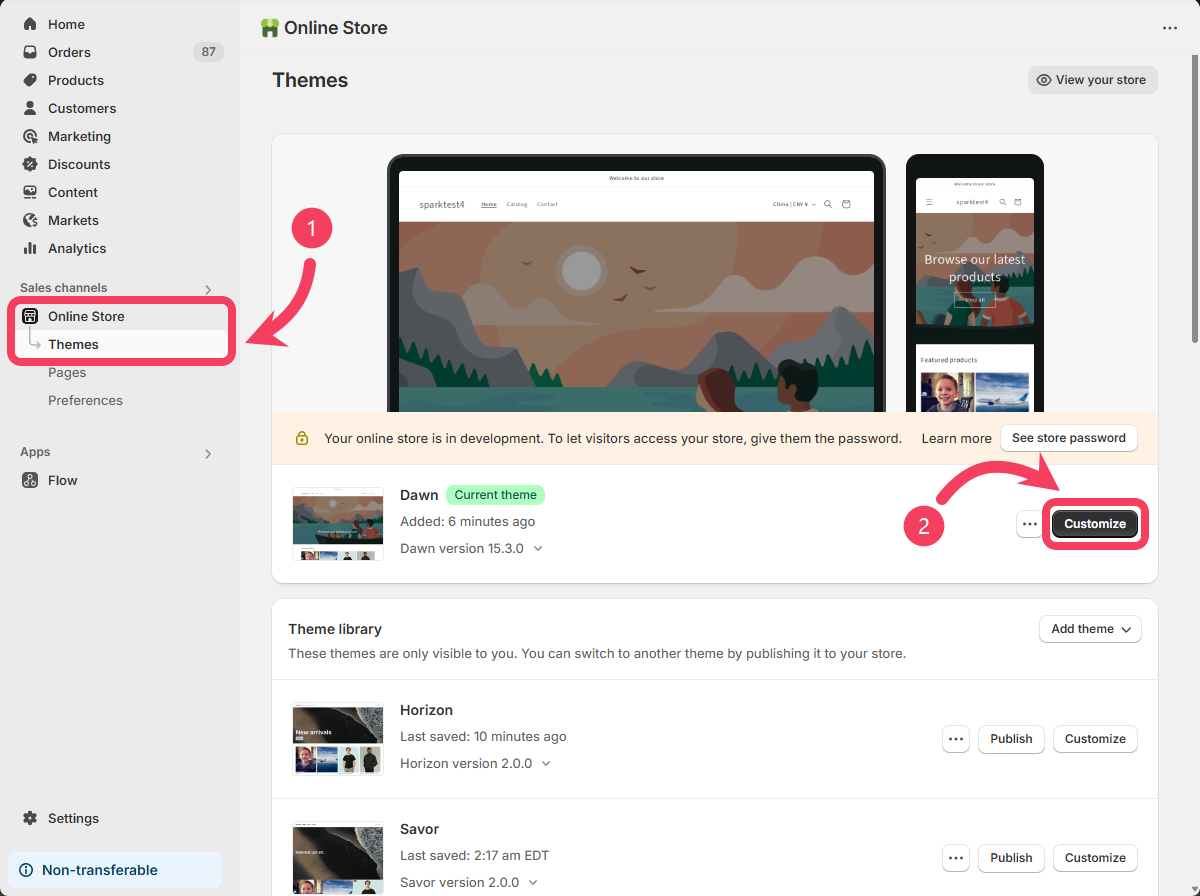
1. Log in to your **Shopify admin** and navigate to **Sales channels** on the left sidebar. Click on **Online Store**, and you’ll be taken to the `Themes` page by default.
2. Find your current `Online Store theme` and click the **Customize** button on the right side. This is where you’ll make a few setup changes to enable the app.
# Enable the App on Your Theme
After you’ve installed the **Mockspark Product Personalizer** app from the [Shopify App Store](https://apps.shopify.com/mockspark), just follow a few simple steps to enable the app in your current **Online Store Theme**. This will complete the setup and connect Mockspark with your Shopify store.
1. Log in to your **Shopify admin** and navigate to **Sales channels** on the left sidebar. Click on **Online Store**, and you’ll be taken to the `Themes` page by default.
2. Find your current `Online Store theme` and click the **Customize** button on the right side. This is where you’ll make a few setup changes to enable the app.
 ### Enable the App Embed
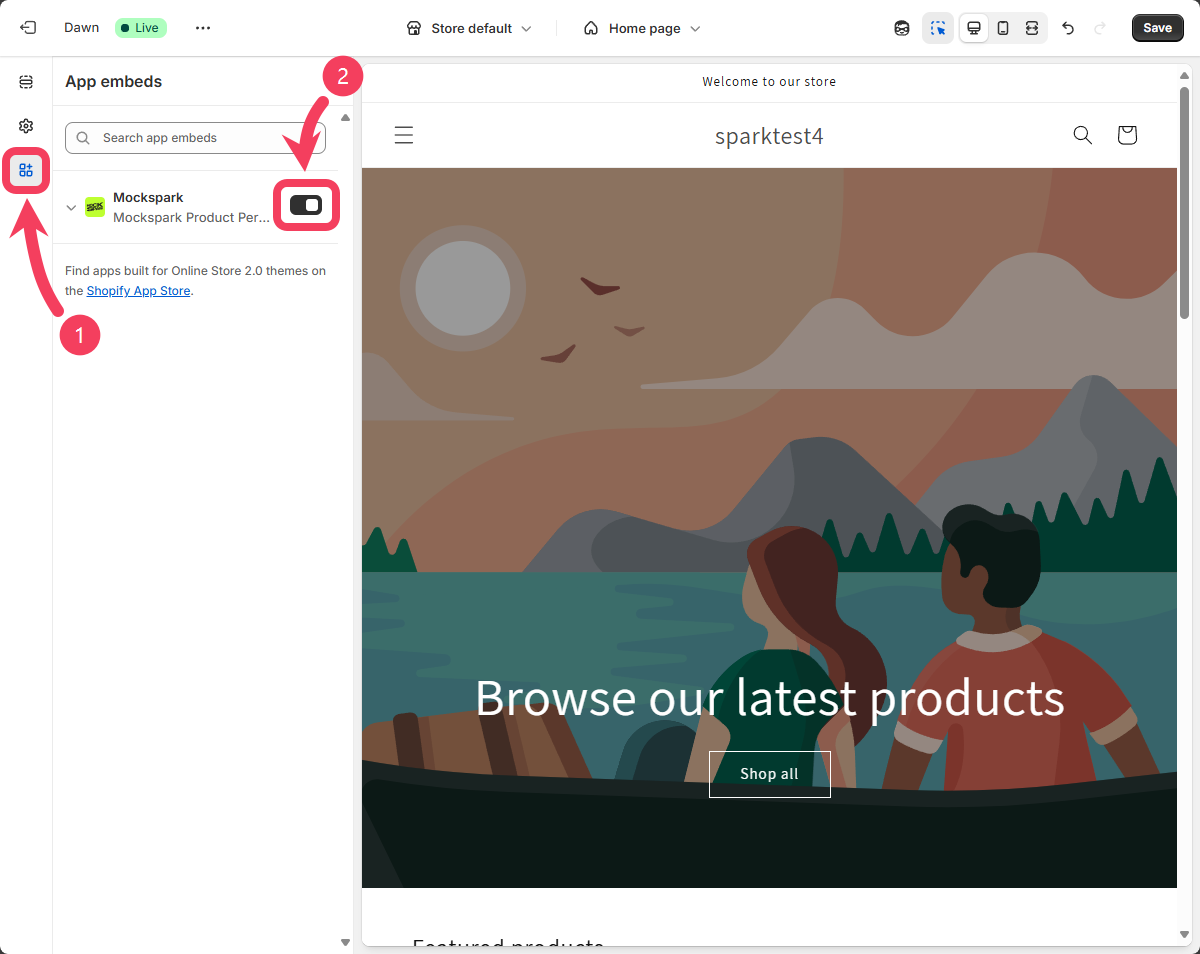
1. On the `theme customization` page, click the third icon in the left-hand sidebar to switch to the App Embeds panel.
2. In the `App Embeds` panel, locate the toggle for **Mockspark** and turn it on to enable the app.
### Enable the App Embed
1. On the `theme customization` page, click the third icon in the left-hand sidebar to switch to the App Embeds panel.
2. In the `App Embeds` panel, locate the toggle for **Mockspark** and turn it on to enable the app.
 ### Add the Design Button
After enabling the `Mockspark App Embed`, the next step is to add the `Mockspark design button` to your product detail pages.
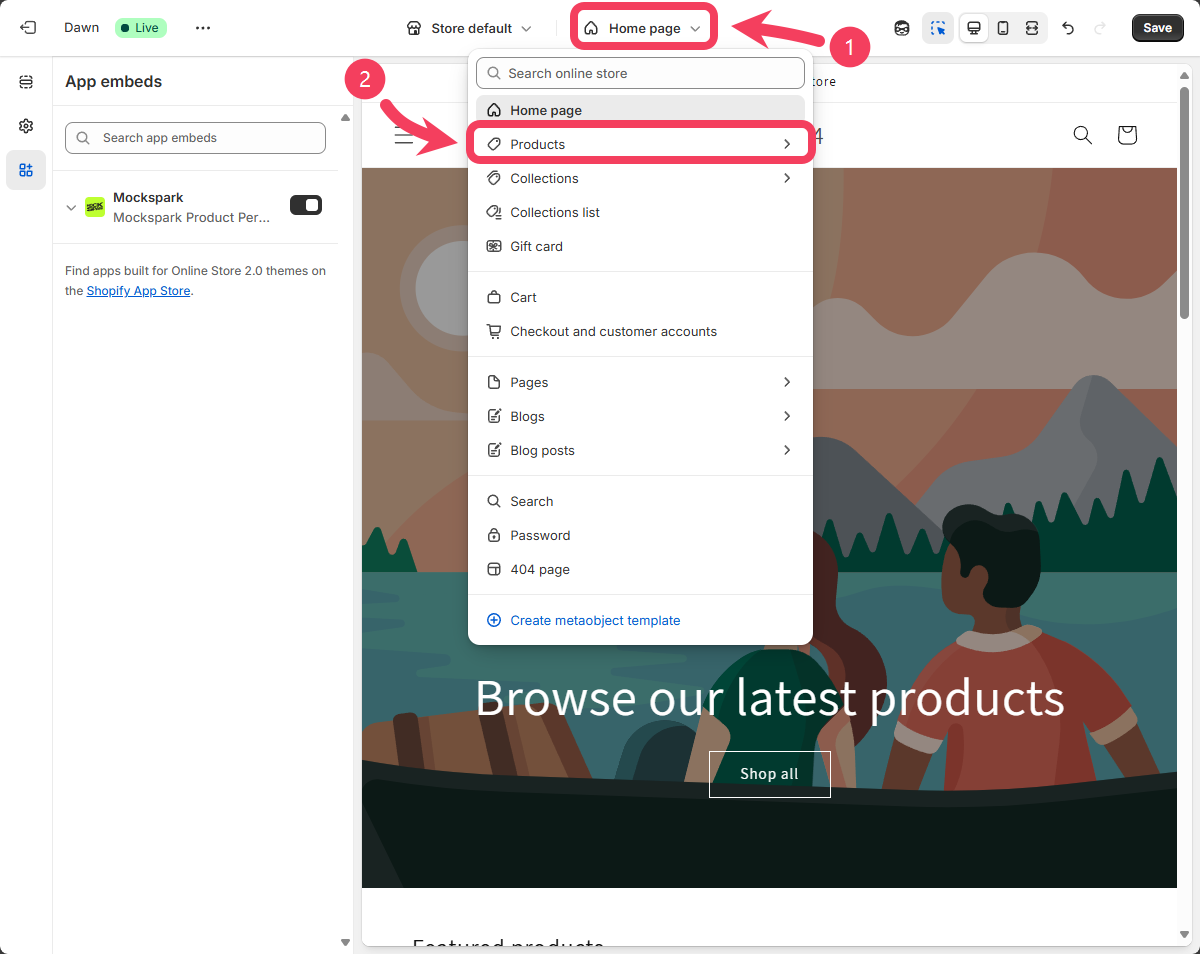
1. At the top of the `theme customization` page, click the dropdown that says **Home page**.
2. From the dropdown menu, select **Products**.
### Add the Design Button
After enabling the `Mockspark App Embed`, the next step is to add the `Mockspark design button` to your product detail pages.
1. At the top of the `theme customization` page, click the dropdown that says **Home page**.
2. From the dropdown menu, select **Products**.
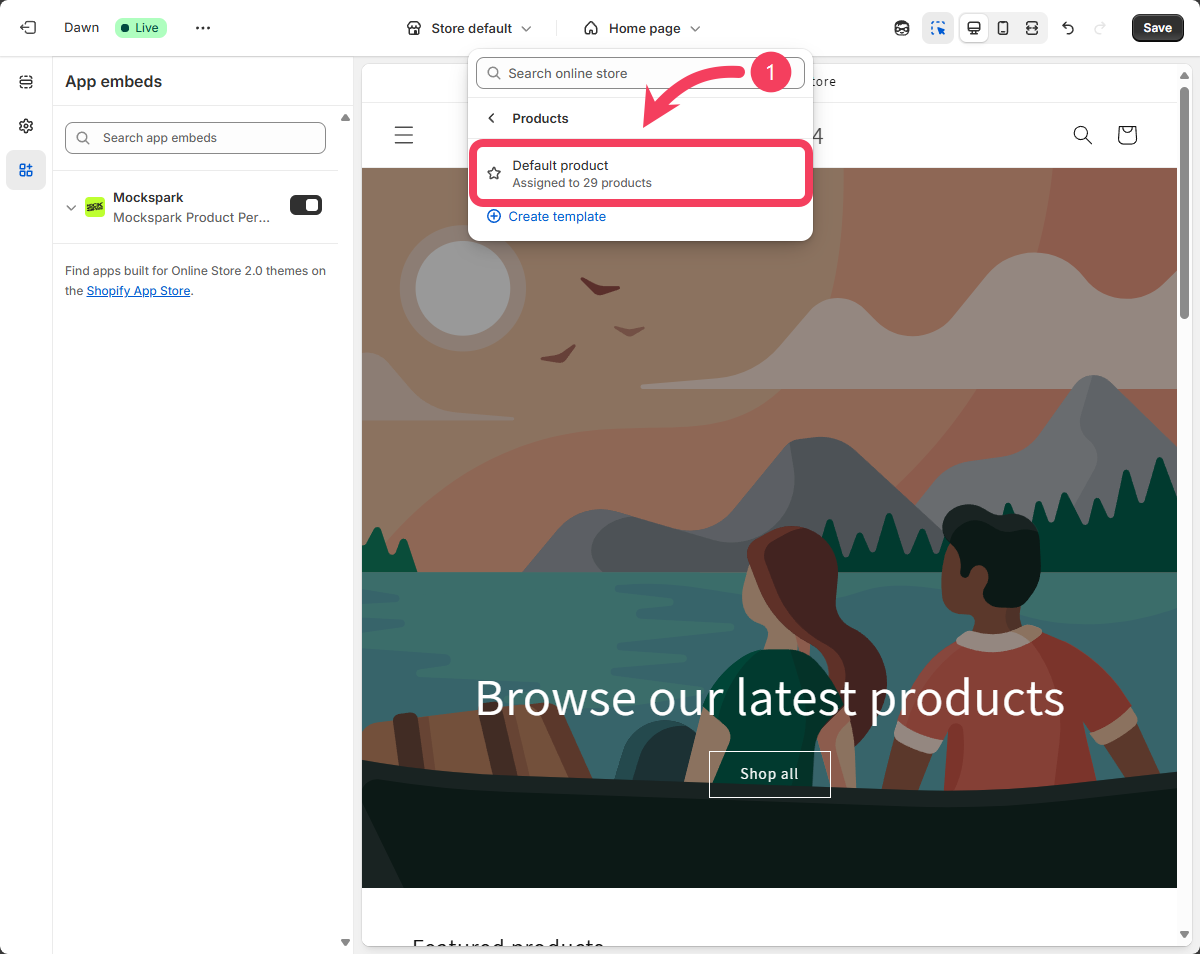
 Click on **Default product** to open the template editor for the product detail page.
The name of the product detail page template may vary depending on the theme you're using. If you're using a paid third-party theme, we recommend reaching out to the theme developer for guidance.
Click on **Default product** to open the template editor for the product detail page.
The name of the product detail page template may vary depending on the theme you're using. If you're using a paid third-party theme, we recommend reaching out to the theme developer for guidance.
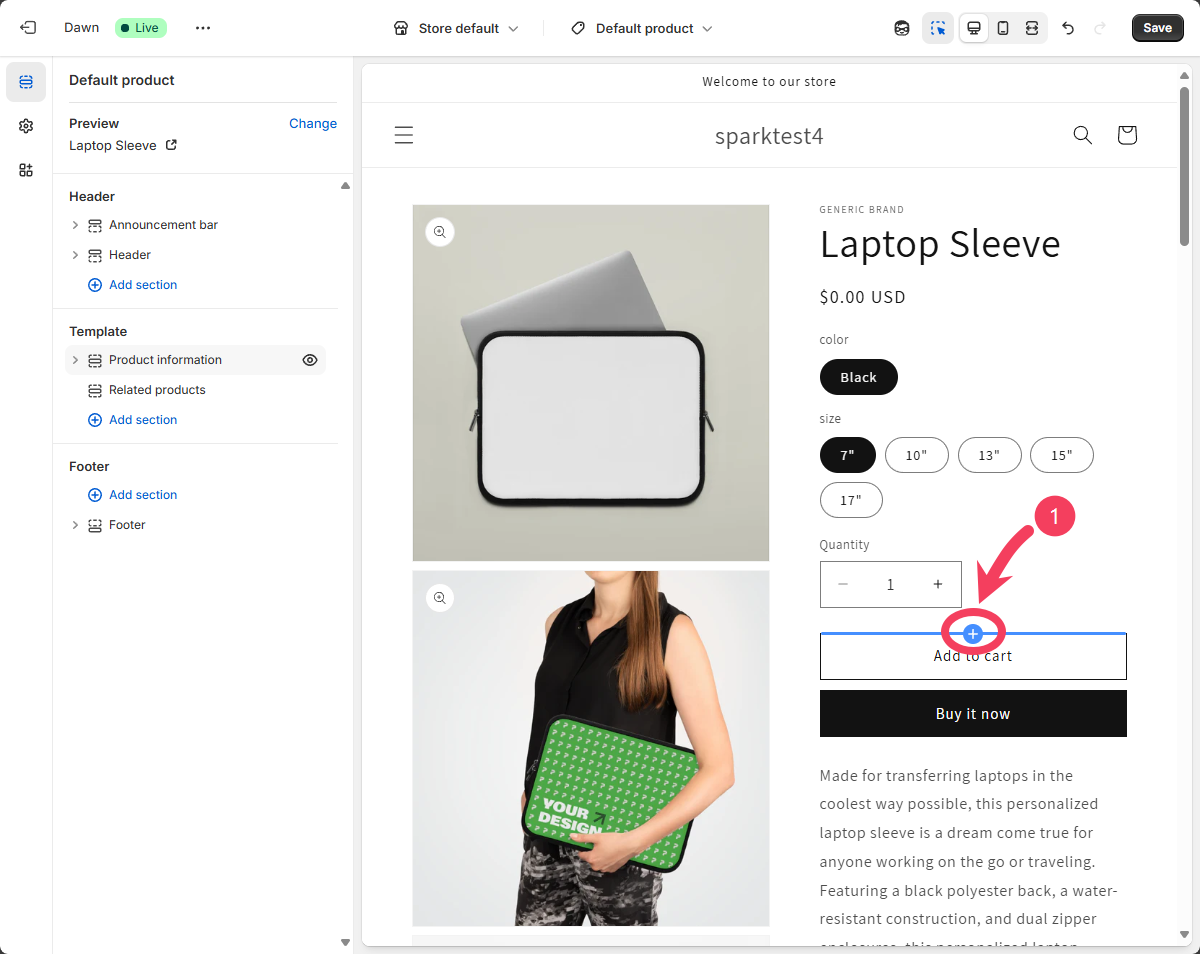
 In the `product detail` page template, choose a spot where you’d like the `Mockspark design button` to appear. A common placement is just above the Add to Cart button.
Move your cursor to the area where you want to add the button. A blue interactive highlight will appear on the screen. Click the plus() icon to insert the element.
In the `product detail` page template, choose a spot where you’d like the `Mockspark design button` to appear. A common placement is just above the Add to Cart button.
Move your cursor to the area where you want to add the button. A blue interactive highlight will appear on the screen. Click the plus() icon to insert the element.
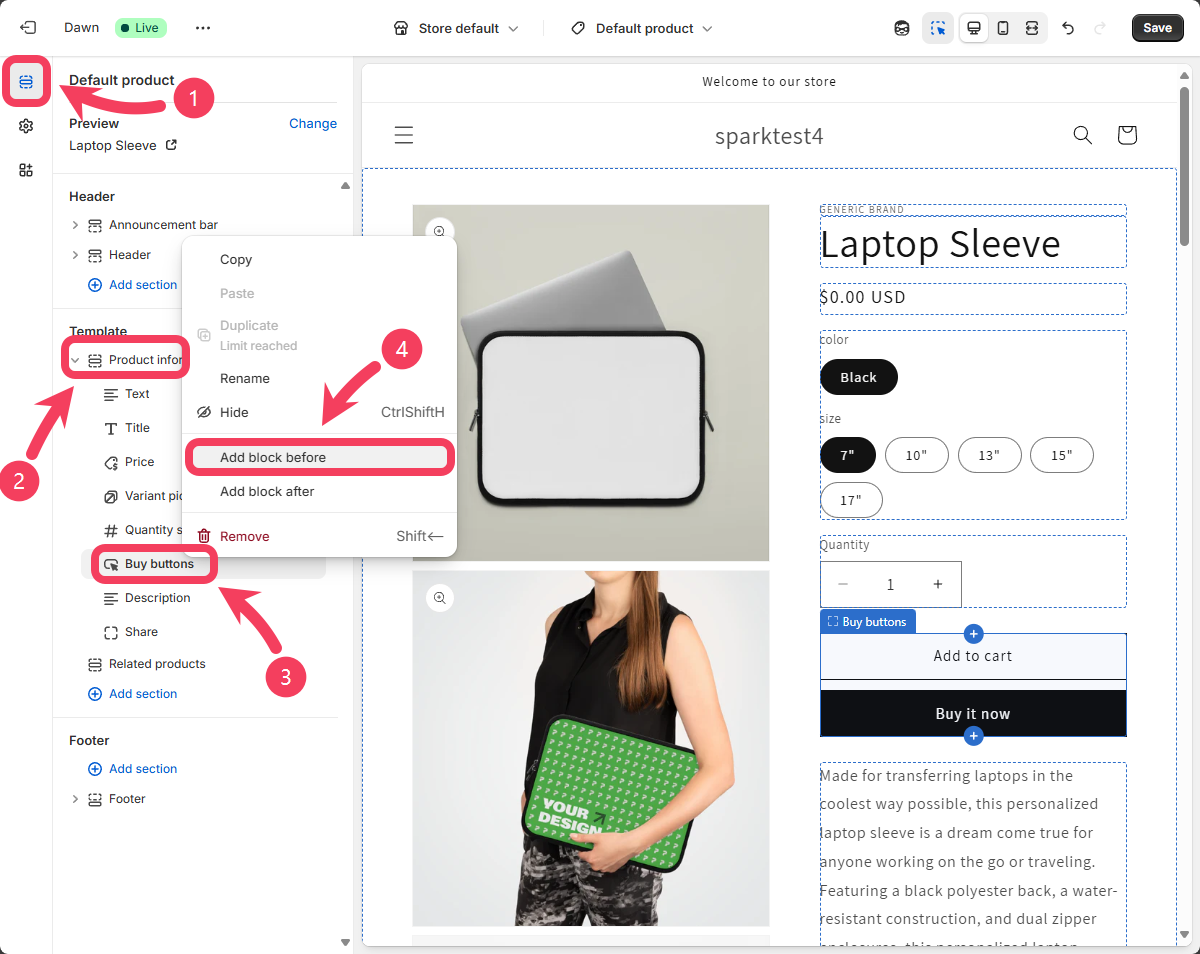
In addition to visually adding the `Mockspark design button` within the product detail page template, you can also add it through the **Sections** panel.
Just pick the way that works best for you.
1. Click the first icon in the left-hand sidebar to switch to the **Sections** panel.
2. Under the **Template** module, select **Product information**.
3. In the expanded list, find **Buy buttons**, then right-click on it.
4. From the context menu, select **Add block before** to insert the button above the Buy buttons section.
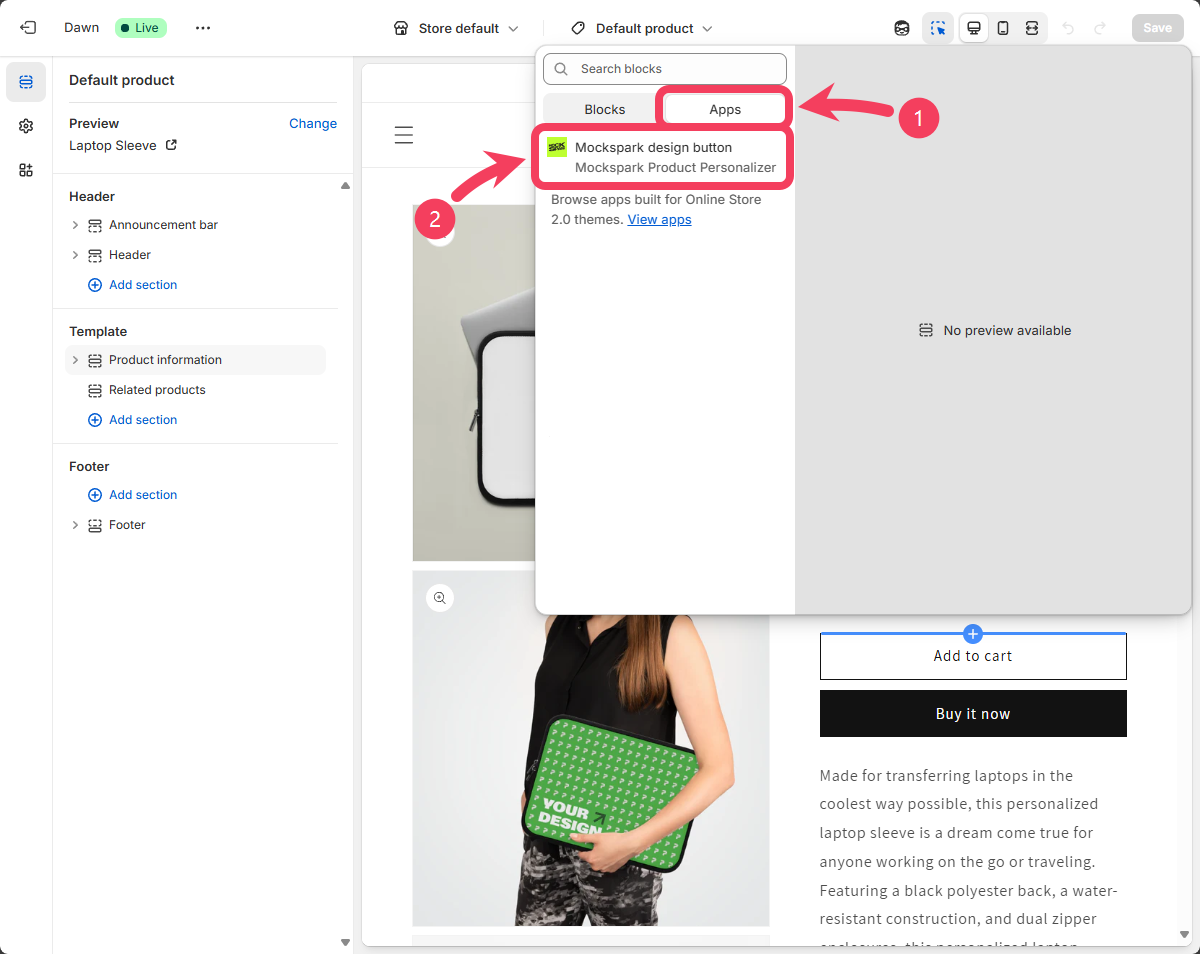
 1. Once you've selected the insertion point, a dialog box will appear on the screen. In the dialog box, switch to the **Apps** tab.
2. After switching to the `Apps` tab, scroll down and select the **Mockspark design button**.
1. Once you've selected the insertion point, a dialog box will appear on the screen. In the dialog box, switch to the **Apps** tab.
2. After switching to the `Apps` tab, scroll down and select the **Mockspark design button**.
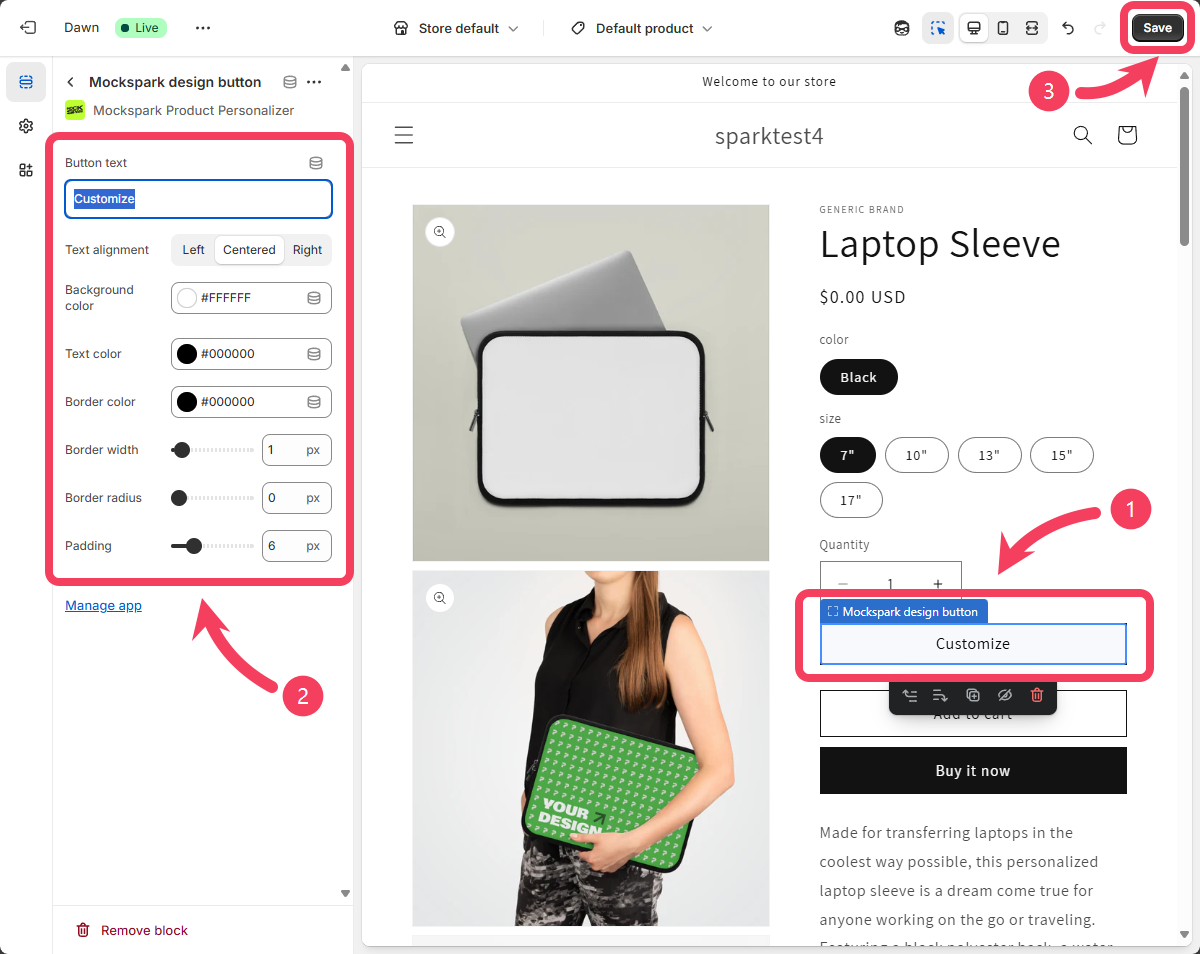
 1. Now, in the product detail page template, you'll see the **Mockspark design button** we just added. Select the button, which is labeled `Customize` by default.
2. After selecting the Mockspark design button, the **settings panel** will appear on the screen. From here, you can customize the button’s **style** to better match your store’s theme and overall look. You can also change the **text** that appears on the button.
The Mockspark Design button settings panel may appear on either the left or right side of the screen, depending on the width of your current display.
3. After you finish configuring the button, make sure to click the **Save** button in the top right corner of the page. Otherwise, your changes will not be saved.
1. Now, in the product detail page template, you'll see the **Mockspark design button** we just added. Select the button, which is labeled `Customize` by default.
2. After selecting the Mockspark design button, the **settings panel** will appear on the screen. From here, you can customize the button’s **style** to better match your store’s theme and overall look. You can also change the **text** that appears on the button.
The Mockspark Design button settings panel may appear on either the left or right side of the screen, depending on the width of your current display.
3. After you finish configuring the button, make sure to click the **Save** button in the top right corner of the page. Otherwise, your changes will not be saved.
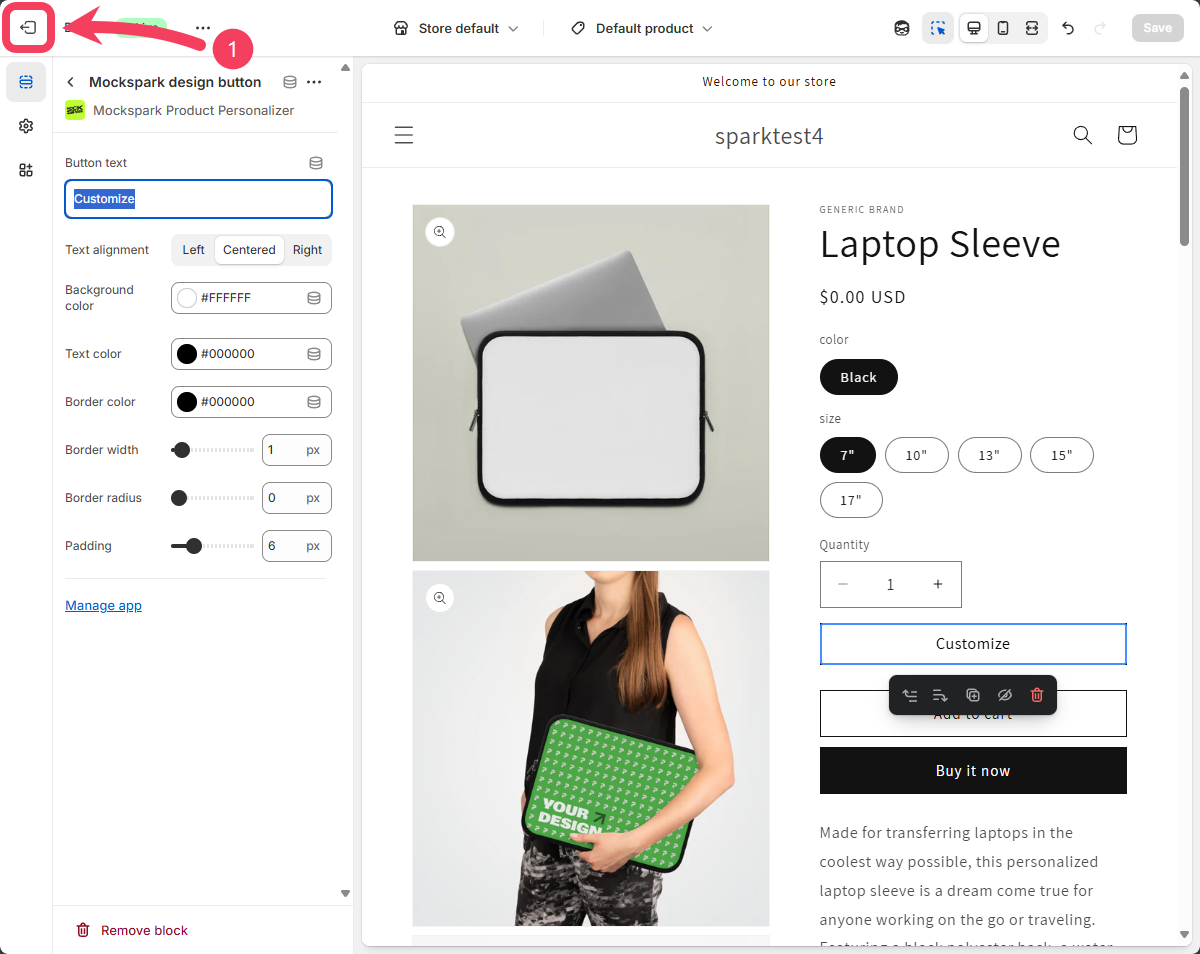
 That’s it! You’ve successfully enabled the **Mockspark Product Personalizer** app in your current Online Store theme. To exit the theme editor, click the **Exit** button in the top left corner of the page.
 # Next steps
If everything went smoothly, you’ve successfully installed and enabled Mockspark. Now it’s time to create and publish your first customizable product.
Let’s get started:
Start selling your customizable products in minutes
# Next steps
If everything went smoothly, you’ve successfully installed and enabled Mockspark. Now it’s time to create and publish your first customizable product.
Let’s get started:
Start selling your customizable products in minutes