> ## Documentation Index
> Fetch the complete documentation index at: https://help.mockspark.com/llms.txt
> Use this file to discover all available pages before exploring further.
# Printify
> Seamlessly link your Printify store to streamline fulfillment
Once you've completed a quick setup, you’ll be able to create and publish **Printify** products directly from our platform. You can also sync orders to **Printify** for automatic production and fulfillment. This helps reduce manual work, so you can focus your time and energy on growing your business.
In the following steps, we’ll walk you through the **Printify** integration process to help you launch your print-on-demand business quickly and easily.
## Generate a New Token
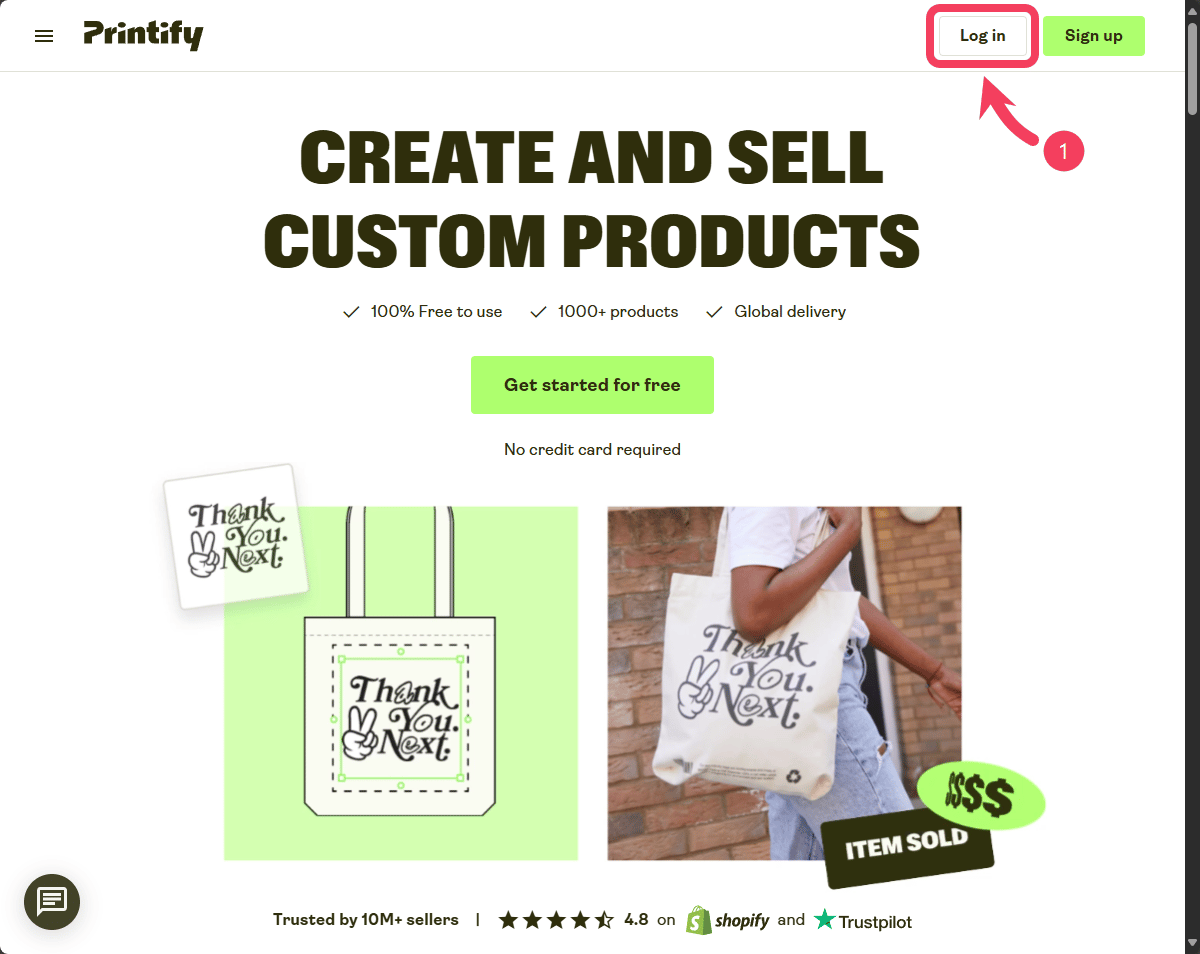
Go to the [Printify website](https://printify.com/) and click **Log in** at the top of the homepage.
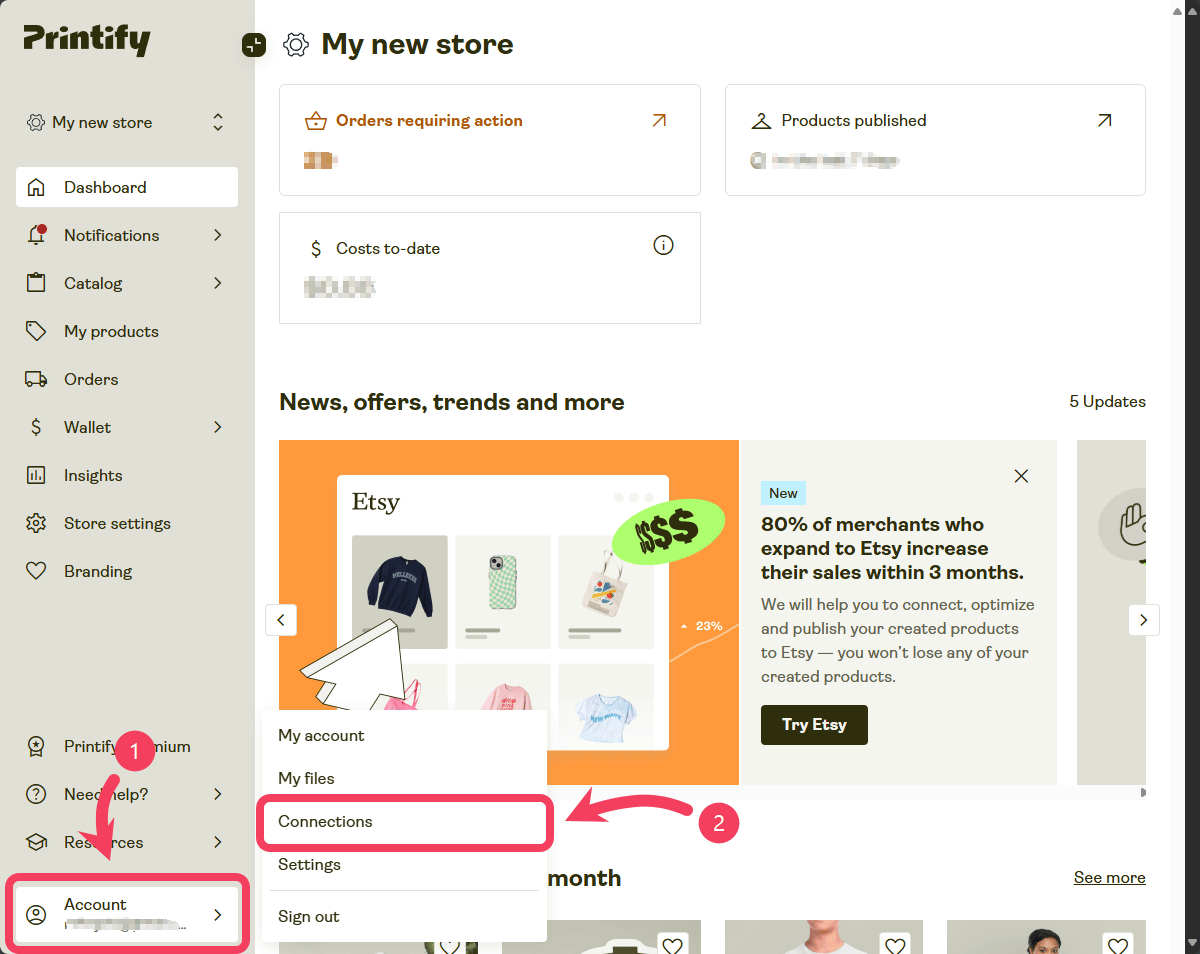
 1. After logging in to your **Printify** account, go to the **Account** section in the sidebar.
2. From the dropdown menu that appears, select **Connections**.
1. After logging in to your **Printify** account, go to the **Account** section in the sidebar.
2. From the dropdown menu that appears, select **Connections**.
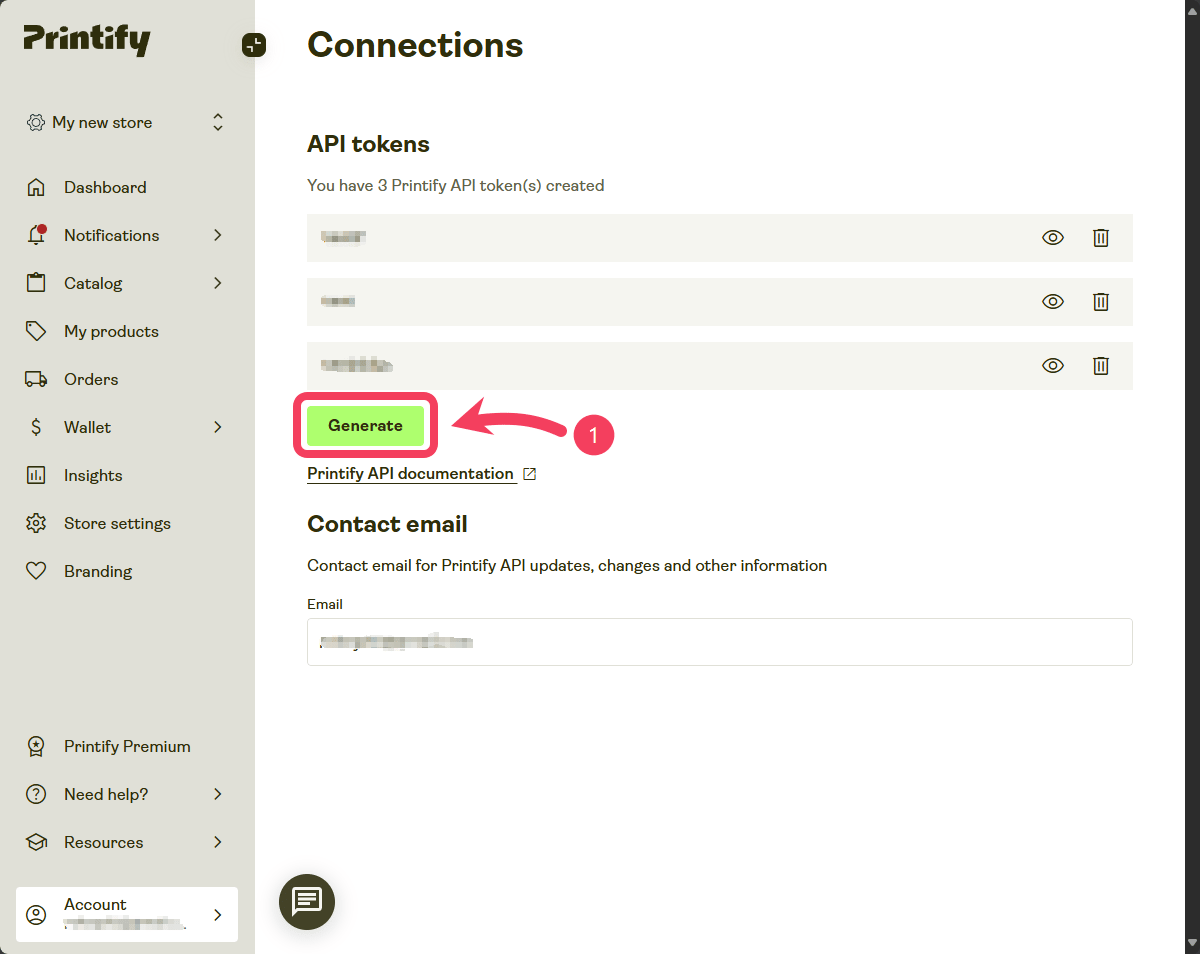
 Once you're on the Connections page, click the **Generate** button to create an API token for MockSpark.
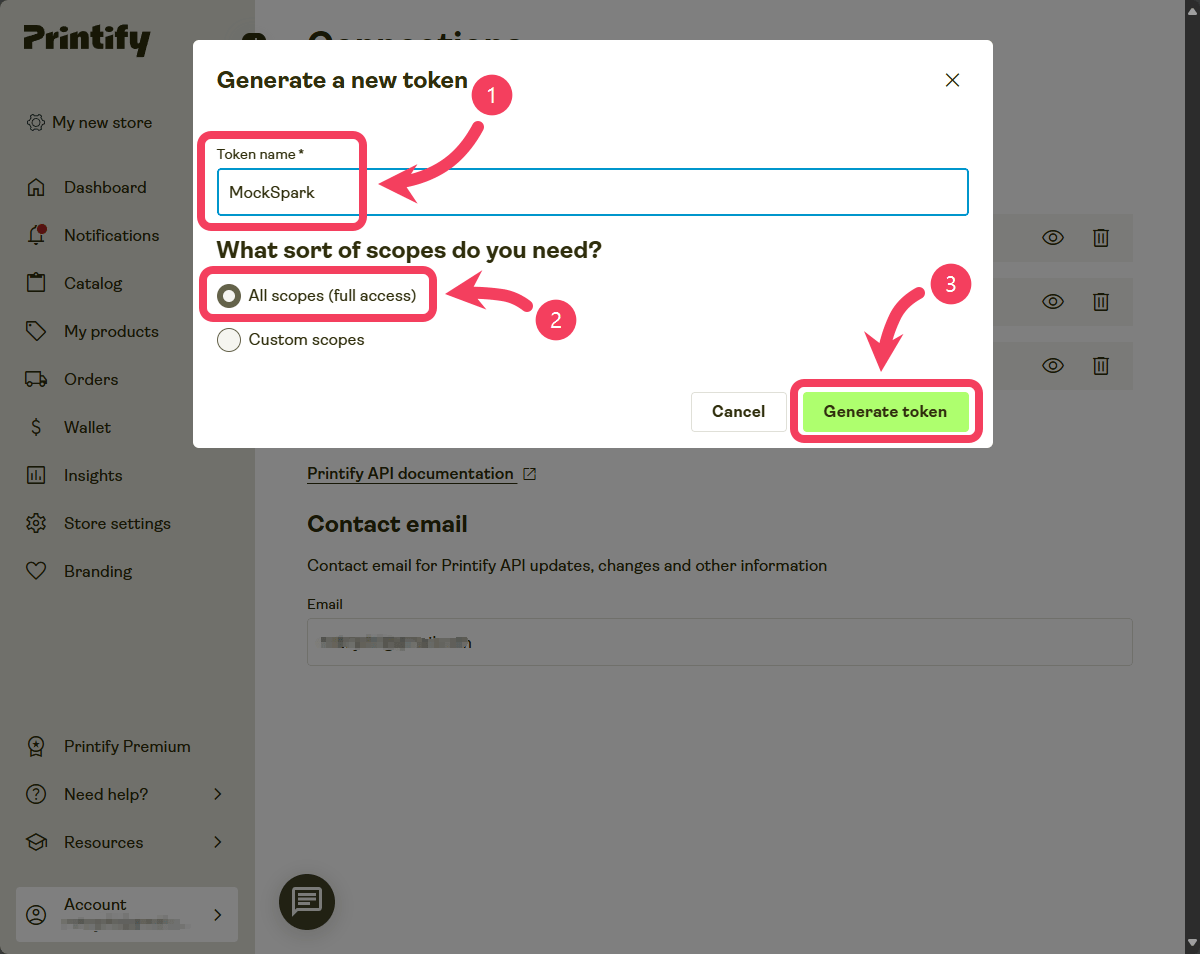
 1. In the `Token name` field of the dialog box, enter a **Name** for your token. Choose something that helps you easily identify its purpose or which service it's for, such as `"MockSpark"`.
2. Under `What sort of scopes do you need?`, select **All scopes(full access)**.
3. Click the **Generate Token** button.
API tokens are valid for one year, they expire after that timeframe and you will need to generate a new one to replace it.
1. In the `Token name` field of the dialog box, enter a **Name** for your token. Choose something that helps you easily identify its purpose or which service it's for, such as `"MockSpark"`.
2. Under `What sort of scopes do you need?`, select **All scopes(full access)**.
3. Click the **Generate Token** button.
API tokens are valid for one year, they expire after that timeframe and you will need to generate a new one to replace it.
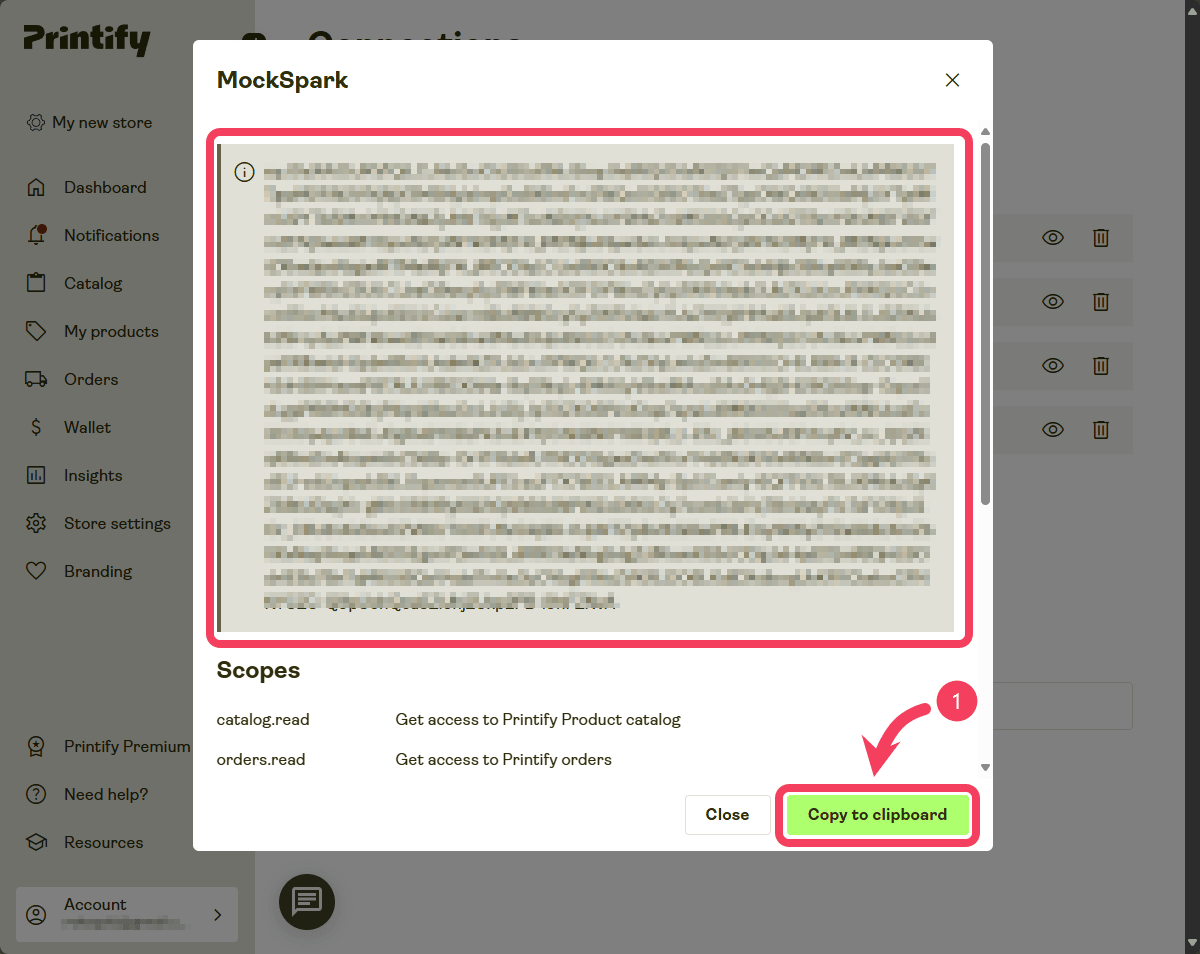
 After the token is successfully created, it will appear in the dialog box. Click **Copy to clipboard** to save it.
The API Token from Printify is only shown once at the time it is created, so make sure to store it securely.
After the token is successfully created, it will appear in the dialog box. Click **Copy to clipboard** to save it.
The API Token from Printify is only shown once at the time it is created, so make sure to store it securely.
 ## Connect to MockSpark
After you've received your Printify API token, go back to the **MockSpark** dashboard.
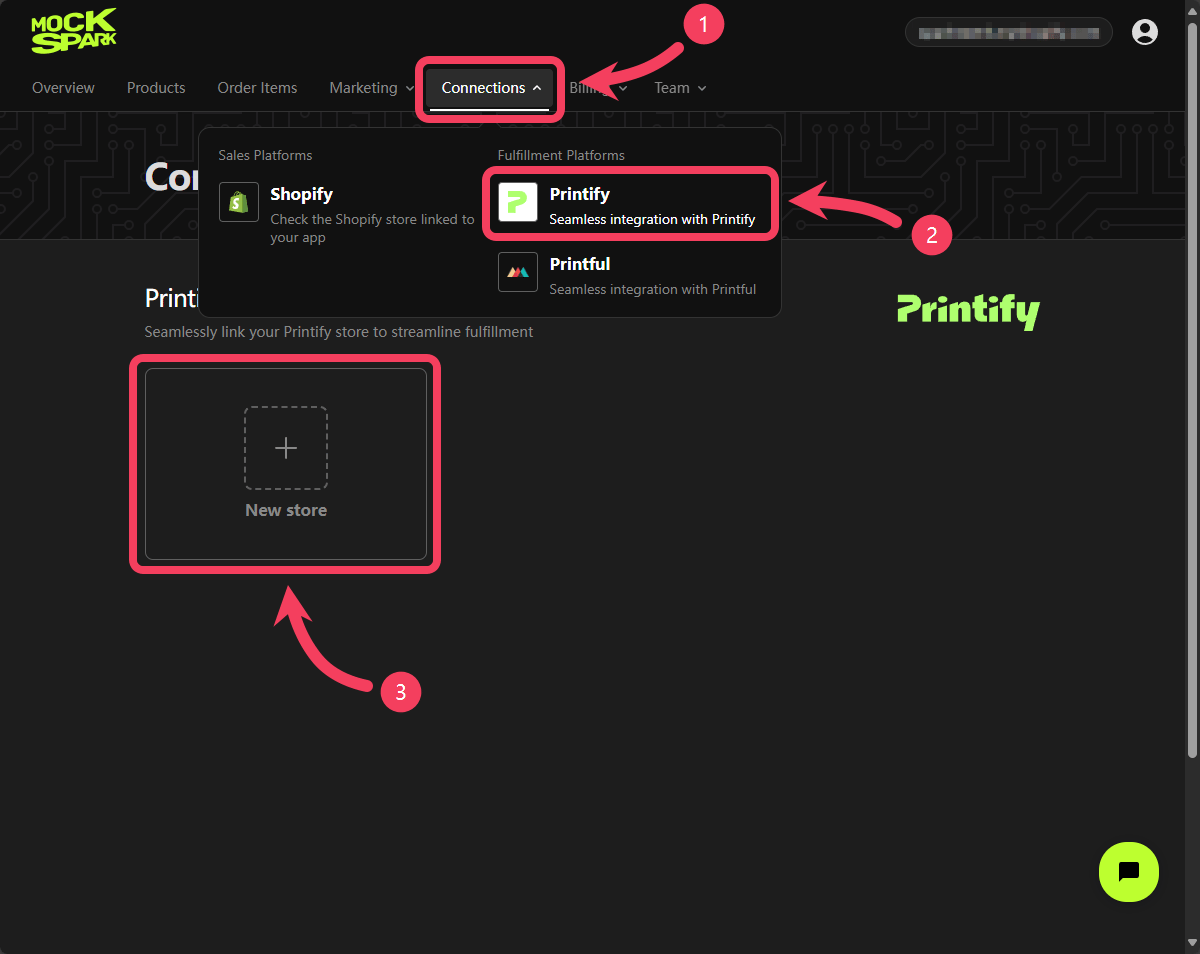
1. Select **Connections** section from the top navigation bar.
2. In the dropdown menu, click on **Printify**.
3. After the page loads, click **New store** on the screen.
## Connect to MockSpark
After you've received your Printify API token, go back to the **MockSpark** dashboard.
1. Select **Connections** section from the top navigation bar.
2. In the dropdown menu, click on **Printify**.
3. After the page loads, click **New store** on the screen.
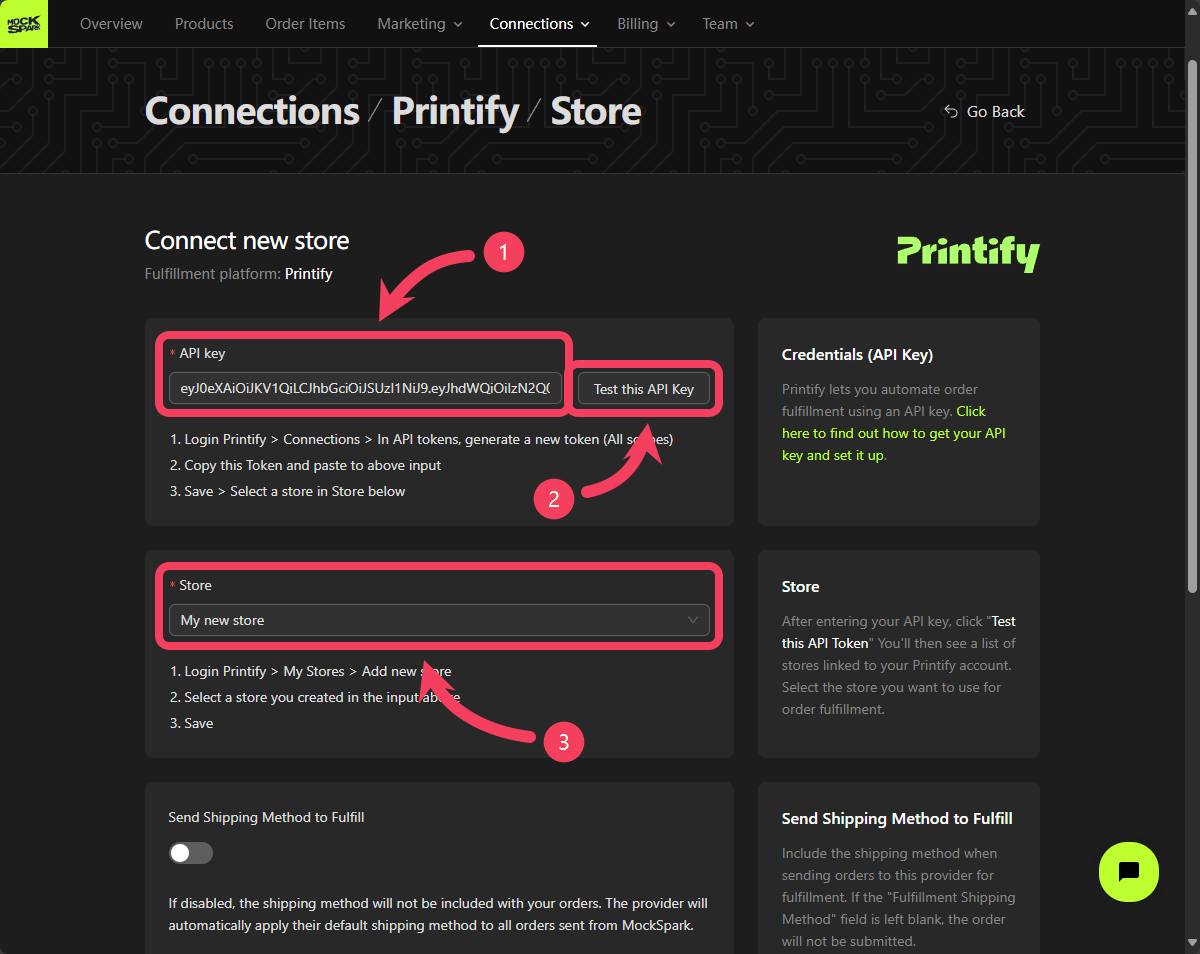
 On the page for connecting a new Printify store, you’ll need to complete the following settings:
1. In the **API Key** field, paste the token you copied from Printify.
2. Click the **Test this API Key** button to make sure the token is correctly formatted and working properly.
3. After confirming that the API token is set up correctly, go to the **Store** field and select the Printify store you want to connect.
On the page for connecting a new Printify store, you’ll need to complete the following settings:
1. In the **API Key** field, paste the token you copied from Printify.
2. Click the **Test this API Key** button to make sure the token is correctly formatted and working properly.
3. After confirming that the API token is set up correctly, go to the **Store** field and select the Printify store you want to connect.
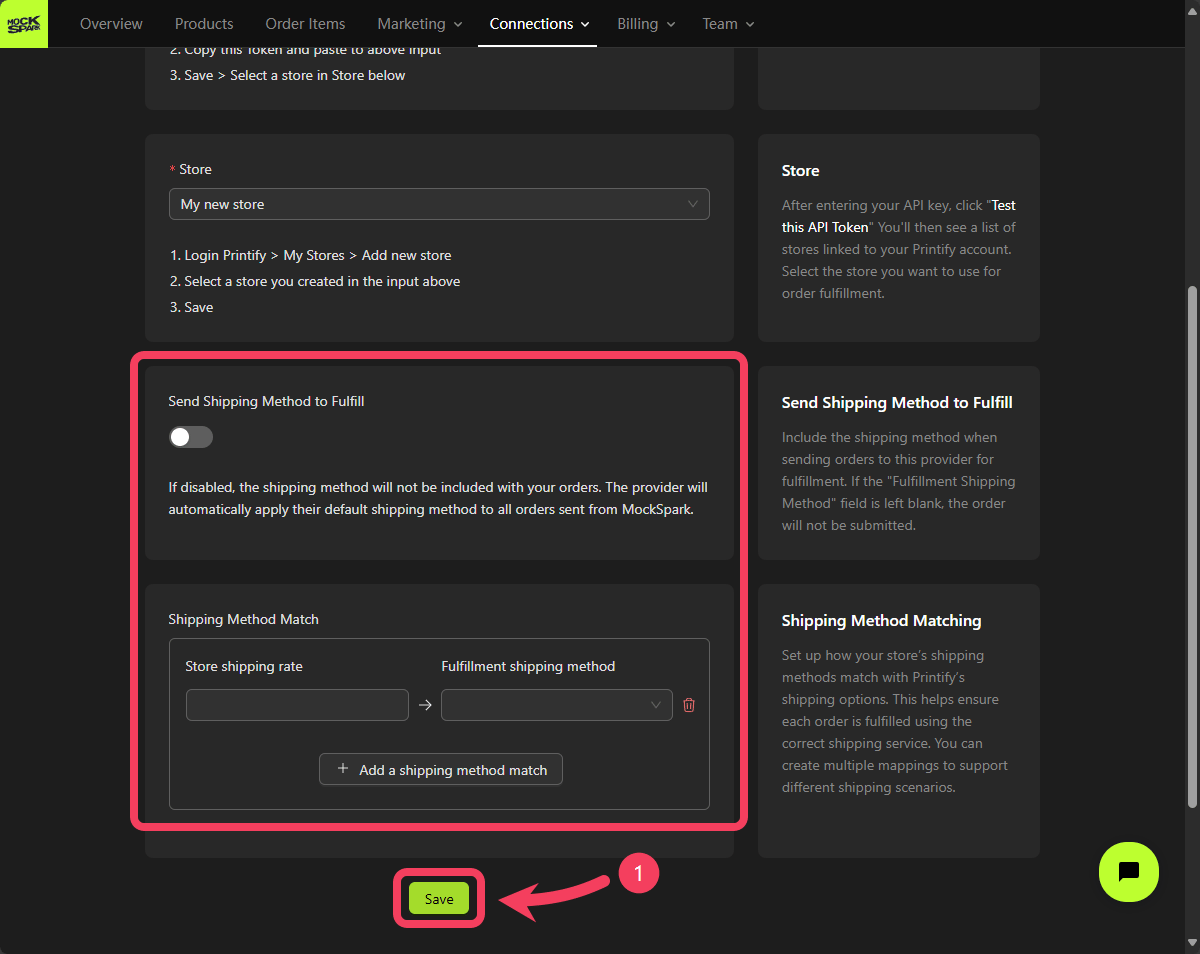
 If you want to align the shipping methods used in your Shopify store with those available through Printify, you can enable the option under **Send Shipping Method to Fulfill**. Then, use the **Shipping Method Match** section to map the shipping options from your store to the corresponding fulfillment methods on Printify.
The **Send Shipping Method to Fulfill** setting is optional.
Enabling the **Send Shipping Method to Fulfill** option can help reduce your operating costs. However, it's important to be familiar with the pros and cons of different shipping methods before using this setting. If you're not sure about the differences, it's perfectly fine to leave this option turned off for now.
1. Once everything is set up, click **Save** to complete the connection to your Printify store.
If you want to align the shipping methods used in your Shopify store with those available through Printify, you can enable the option under **Send Shipping Method to Fulfill**. Then, use the **Shipping Method Match** section to map the shipping options from your store to the corresponding fulfillment methods on Printify.
The **Send Shipping Method to Fulfill** setting is optional.
Enabling the **Send Shipping Method to Fulfill** option can help reduce your operating costs. However, it's important to be familiar with the pros and cons of different shipping methods before using this setting. If you're not sure about the differences, it's perfectly fine to leave this option turned off for now.
1. Once everything is set up, click **Save** to complete the connection to your Printify store.
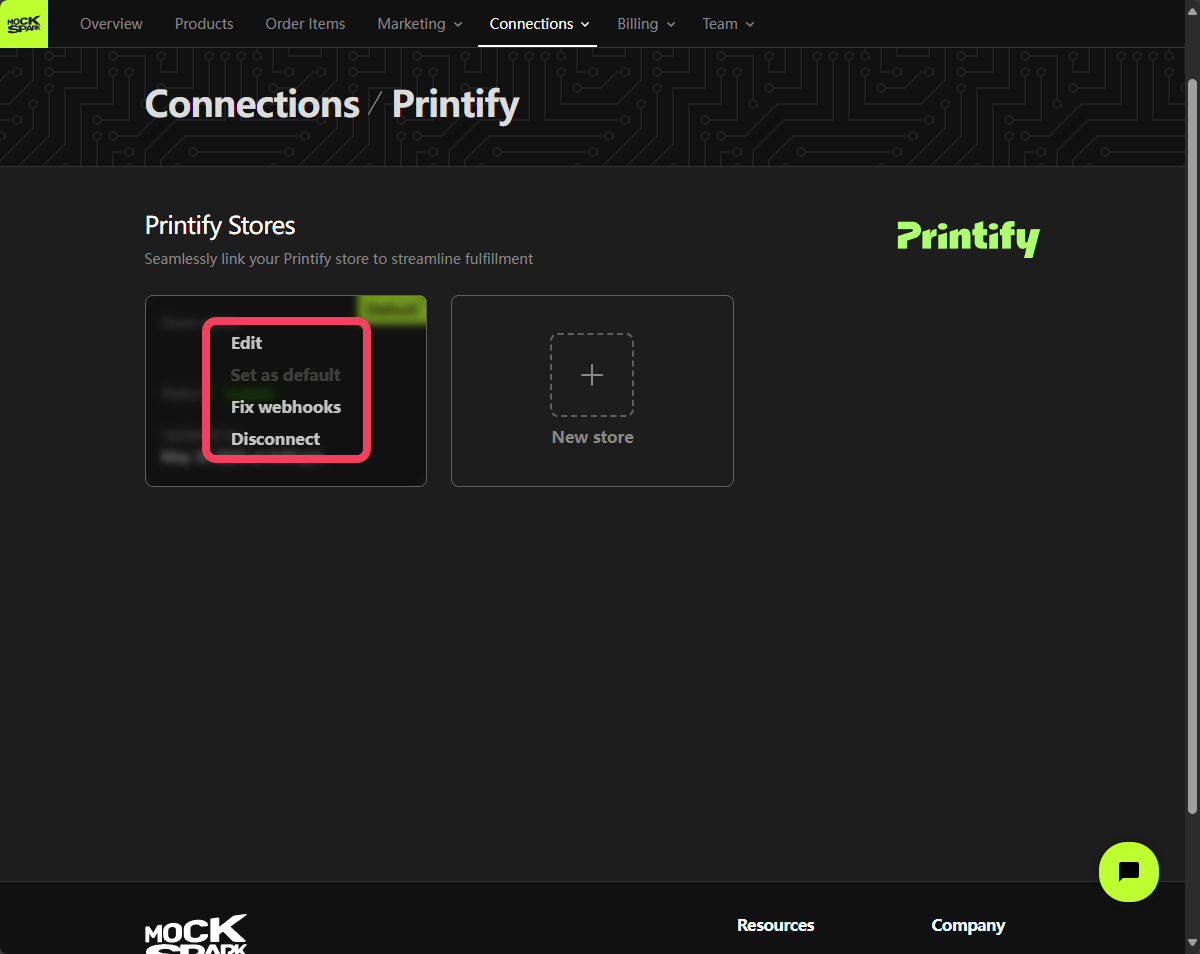
 After saving, you’ll see the store you just connected listed on the Printify Stores page.
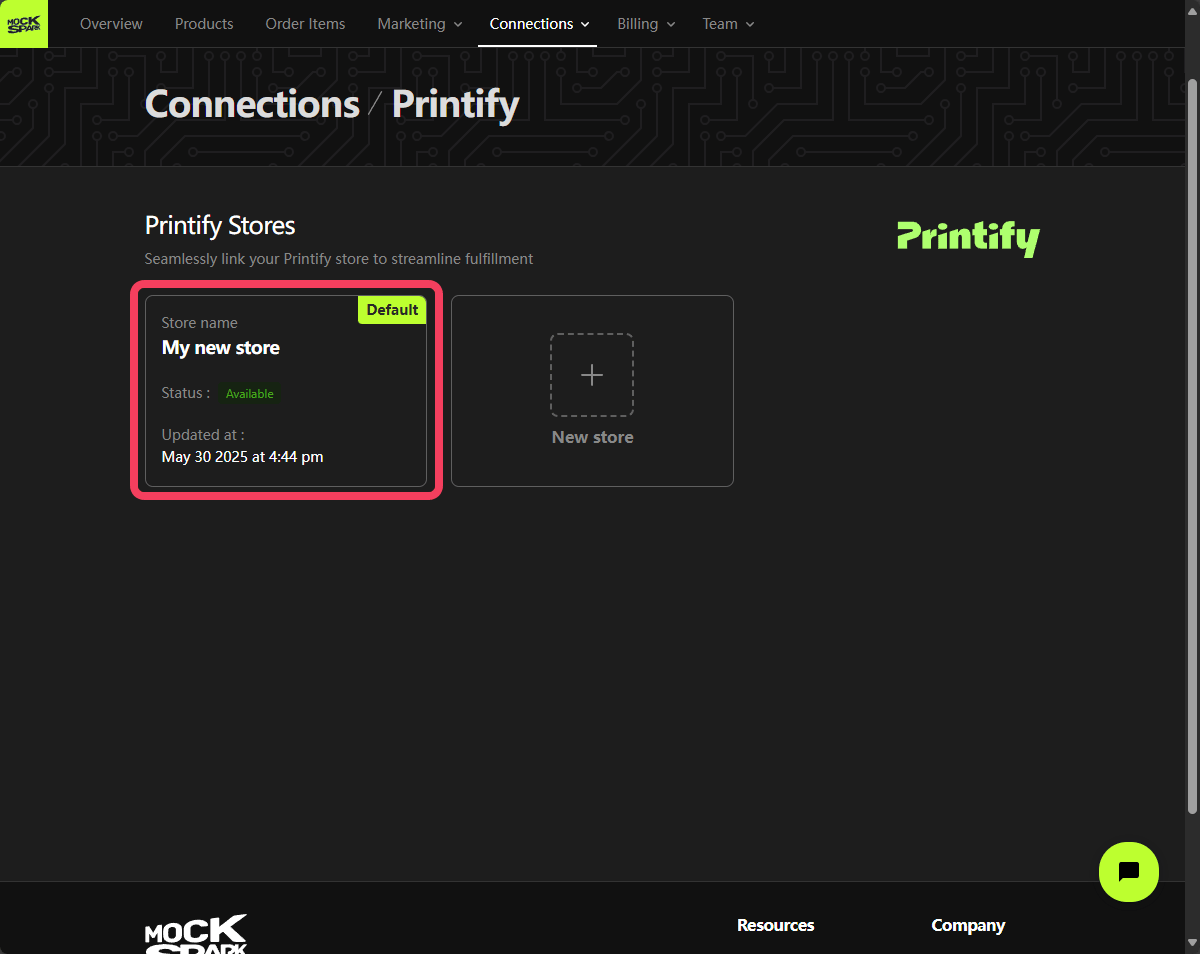 When you hover over the store card, you'll see options to edit or disconnect the store.
If a printify store is set as the default, all bulk fulfillment order-items will be processed through that store.
When you hover over the store card, you'll see options to edit or disconnect the store.
If a printify store is set as the default, all bulk fulfillment order-items will be processed through that store.